Showing posts with label wordpress. Show all posts

Major WordPress Plugins Making Websites Vulnerable


Vulnerable WordPress Plugins


Are you using WordPress to run one of your websites? If yes, then you need to read through. According to a latest warning by a security company, a number of WordPress plugins are vulnerable to a security flaw, which could compromise your website and leave it open for malicious attacks. These are some of the major plugins that you are likely to have installed on your websites. If so, then immediate action is required!


The warning was issued by WordPress Security watchdogs Sucuri. According to them, this is a major security flaw that is shared by many WordPress plugins, some of which are quite popular. According to them;


“Cross-site Scripting (XSS) due to the misuse of the add_query_arg() and remove_query_arg() functions. These are popular functions used by developers to modify and add query strings to URLs within WordPress.”


Apparently, the problem was that the official WordPress Official Documentation for these functions was not very clear, which led to many plugin developers using them in an insecure way.


To date, this is the list of affected plugins:


  • Jetpack

  • WordPress SEO

  • Google Analytics by Yoast

  • All In one SEO

  • Gravity Forms

  • Multiple Plugins from Easy Digital Downloads

  • UpdraftPlus

  • WP-E-Commerce

  • WPTouch

  • Download Monitor

  • Related Posts for WordPress

  • My Calendar

  • P3 Profiler

  • Give

  • Multiple iThemes products including Builder and Exchange

  • Broken-Link-Checker

  • Ninja Forms


As you can see, some of these plugins are very popular and used by millions of websites. If you use any of the above plugins, it’s recommended that you update them immediately.


This vulnerability was initially discovered last week, which has allowed for time for the flaws to be patched. Sucuri reports that all plugins have been patched, and as of this morning updates should be available to all users.


As an additional caution, plugins beyond what’s listed above may be vulnerable to the same security flaw, and have just not been detected yet. With that in mind, it’s best to keep all of your plugins updated just in case.


Stay safe :)


WordPress 4.1 Now Available For Download


WordPress has come a long way from the boring old 2.0+ version to the much more optimized and streamlined version you see today. With the 4.0 update, WordPress greatly improved the media experience for users, along with other performance improvements. WordPress continues its rapid stream of updates, and has announced that WordPress 4.1 is now available. It boasts of many new features.


This latest version of WordPress is code-named 'Dinah' in honor of the singer Dinah Washington. Publicly available for download or update directly through the dashboard, this version focuses on enhancing the writing experience for users, along with performance improvements and other features.


Editor improvements


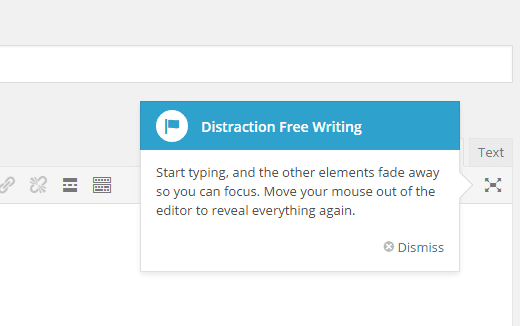
Focus has made in this update to improve the writing experience. So now there's a new distraction-free mode to help you concentrate on writing content. This mode automatically triggers when you start typing, and anything that's not necessary simply fades away and then automatically returns when you stop writing.


Distraction free writing


This is a pretty neat feature. The whole update is about reducing clutter, so it makes sense. The WordPress text editor typically contains a lot of fields and whatnot, which can be overwhelming at times. So this feature is sure to make writing a lot easier.


New theme


It is customary for WordPress to release a new theme each year, named after the year itself. This theme acts as the default theme for all new WordPress installations, and you can revert back to it anytime.


Twenty Fifteen is described as a 'blog-focused theme designed for clarity. It reduces clutter and puts your content front and center. It’s suitable to be viewed on any screen size, whether on a phone, tablet, laptop, or desktop computer.


Additional features


There's a new feature that lets you log out of any devices you might have logged in from in the past. This is useful because I log in from a lot of locations to constantly check up on my website, but don't always remember to log out. I am sure many of you will find this useful as well.


One cool feature that we'd like WordPress to expand is the embed Vine video option. Instead of getting an embed code, you can simply paste in a Vine URL and it will automatically embed itself! We'd like to see this feature integrated with YouTube and other providers as well!


Other improvements include extended language support, and plugin recommendations based on what you already have.


All in all, it's a pretty nice update. If you want, you can view the full updated feature list here.

Wordpress 3.5 Upgrade Errors: Forgot to Backup?

wordpress upgrade errorsWordpress version 3.5 recently got released and just like always, many webmasters are striking their heads against the wall due to newly introduced database errors. Wordpress emphasize greatly to backup your database before making any change but most often we forget to backup and click the Upgrade button in hurry- what follows next is a horrible nightmare for those who are not well versed with MySQL database management and error recognition. I recently got into the same trouble while updating our sister blog i.e. Smart Earning Methods.  I forgot to backup the database! Fortunately we receive schedule backups on our Email daily and this was no less than a blessing. The site I updated to WP 3.5, got messed up with plenty of Query errors all pointing to the plugin directory.

As a PHP developer, fortunately it was easy debugging these errors and restoring the database back to its normal working mode. We would share some tips here that will help you in fixing such errors no matter how big or small your problem be, the tips are enough to put your site back to work even if it gets hijacked or entire database gets deleted or crashed.


Things To do Before Upgrading Wordpress


1. Always Take Backup of Database Manually

There are several ways to take wordpress backup. The simplest and best way is to do it manually i.e. Through PHPMyAdmin. I never rely on plugins when it comes to Database and I suggest the same for everyone. However for schedule daily backups, I do make use of a plugin called WordPress Database Backup.

To backup your database through PHPMyAdmin there could be no better tutorial then the one given by the Wordpress Folks themselves:

2. Email the Backup Copy To your Gmail, Hotmail or Yahoo Account

In order to ensure the backup you saved does not get infected while it stays in your hard drive. Its always wise to take two backups and store them on different locations. I normally keep one online using Gmail and one on my hard drive. You can either use the plugin I suggested in step#1 for Scheduling backups to email you the backup file or you can manually email yourself a copy of the backup you saved in step#1.

That's all!

Summary:

*Take backup of your Wordpress Database through PHPMyAdmin and save the same copy both online and offline.


Things To do After Upgrading Wordpress
Update Plugins!

Before even visiting your website to see how it looks after the update you must first update the plugins in you installed. Plugins with available updates would be clearly visible in the notification bar. Simply go to Plugins Tab and tick the check boxes next to all plugins and then select update from the drop down menu and hit Apply. All done! Visit your blog site now to see it working just fine. :)

update plugins


Fighting Plugin Errors

Its very common to see several MySQL errors displaying on your Homepage or Post Pages just after you make the update. This often happens because most Plugins also require compatibility update whenever a new version of Wordpress is released. Most often the developers fail to update their plugins in the wordpress repository. As a result when the new version is rolled out, plugins that aren't updated would fail to function properly and therefore you would see several errors on your screen. These errors look like the following:


Call to undefined function deactivate_plugins() in

/home/xxxx/public_html/xxxxxxxx.com/wp-content/plugins/commentluv/commentluv.php on line 56

The above error occurred for Commentluv plugin. The name of the plugin will be clearly mentioned in your errors and that's what you need to note down. A Plugin error will contain the Plugin  string.

Simply not down the plugin name and go to Plugins Tab to deactivate it. Once it is deactivated/disabled visit your site to find it working just fine. Repeat this process for every single plugin that may be causing issues.

Fighting Database Crash and Hackers

Probably this is the worst nightmare for those who often limit backup to database alone. there are two important things to backup when we talk of safety. They are:

1. Backing Up your Entire Wordpress Site

A database only includes your posts, comments, archives, categories, tags and other configuration data. It never saves the following most important media on your site,

  1. WordPress Core Installation
  2. Plugins
  3. Themes
  4. Images and Files
  5. JavaScript and PHP scripts
  6. Static Web Pages

So imagine a webmaster who sleeps peacefully every night thinking he is all safe because he keeps a daily backup of his database but in fact he is the one who is truly shattered when his site gets hijacked by unwelcomed intruders. He may succeed in saving a copy of the database but what about the site's images, JavaScript, PHP and stylesheets which are the rich elements that give true shape and color to the site?

Therefore you must always keep a backup of this rich media on your hard drive. There are several ways of backing up your entire wordpress site. I wont mention them here because there are several tutorials already written on this topic. The best tutorial so far being the following:

Your webhosting company keeps a backup of your site but you are never sure how fresh that backup copy is. Therefore to be on the safe side always run a Site backup at least once a week. It surely take hours to complete even with FTP, depending on your site size! :)

2. Backing Up Database

A database is the collection of all your site records in the form of tables. Its saves your posts, pages, comments, categories and other related data in well organized collections of tables. When you update, delete or insert any stuff in your wordpress site you are only running queries at front end in MYSQL database using your dashboard as the interface.

Backing up database means keeping a copy of all such important information of your site in a safe folder. A Database never contains your site images, stylesheets, scripts or other resources, it only saves text based records of your site.

We already discussed how to backup database manually using PHPMyAdmin.

Are you safe now?

Well if you have a backup copy of both site and database, then of course you can relax and enjoy your cup of coffee even if the site gets hacked by a moron!


Questions?

If you recently trouble-shooted yourself with any such mishap then feel free to post your query below and I would try my best to respond promptly. I just hope your online journey continues without bugs and errors. Happy wordpress 3.5 experience to all. Peace and blessings buddies! :)

Convert a Wordpress blog To Blogger in easy steps


Blogger is a very widely used publishing platform, mostly because its strength lies in its simplicity and ease of use. It is quite easy to use, and is recommended for beginner bloggers who are looking for a quick and easy way to create a presence for themselves online. For bloggers who have created a WordPress blog, but are at a loss to maintain or modify it, they have a great option in Blogger. They can easily migrate their WordPress blog to Blogger without any hitch. In this post, we will talk about how you can shift from WordPress to free Blogger.


Normally, such a transfer isn't easy. Data needs to be imported from WordPress first, and then imported to Blogger. Since Blogger doesn't allow any data format except its own, there needs to be a conversion process that will convert WordPress exported files. Luckily, there's just such a utility available! Here, we will guide you through the simple steps. Following them, you can convert self-hosted WordPress blogs to Blogger, as well as migrate from free WordPress to Blogspot.


Step 1: Importing from WordPress


  • Log into your WordPress account (for free WordPress users), and then choose the blog you want to convert into Blogger. Alternatively, you can log into your blog's dashboard directly by adding the /wp-login.php suffix to your blog's home URL (eg yourblog.com/wp-login.php or yourblog.wordpress.com/wp-login.php)

  • Navigate through your WordPress menu, and find the Tools option. When you click on it, you'll see further options, among which you will see the Export option. Click on it.


Export


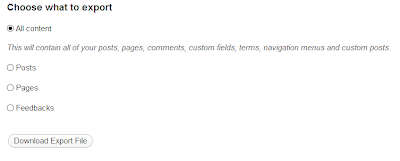
  • Click on the Radio Button next to 'All Content' under the heading 'Choose what to Export'. You can select only posts, or pages, or feedbacks, but it is recommended that you select All content to ensure maximum content is transferred. Then click on Download Export File, which will let you save the exported file to your hard drive. You have completed step 1 at this point.


Download exported file


Step 2: Convert into Blogger format


There is a useful little app that will do this job for you. To convert, visit this app's page, and navigate to the button in the middle of the content that says 'Choose file'. Browse to the file you downloaded from WordPress, and upload it here. Then click Convert. After the conversion, you will need to save the output file. This file is in Blogger-friendly format, and will be used inside Blogger.


Step 3: Import to Blogger


  • The import process into Blogger is pretty straightforward. Simply log into, or sign up for your Blogger account, and click on Create a Blog link. I'm assuming you want to create a new blog for your new content. But if you want to, you can import into an existing blog as well.

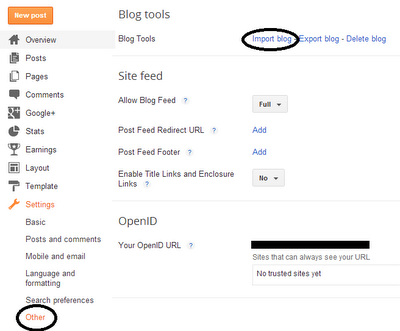
  • From the Dashboard, click on Settings >> Other >> Import Blog.


  • Now, all you need to do is follow the simple instructions, and upload the converted file. You will be guided through a wizard that will import data from this file into Blogger. Once done, you will see all your posts from WordPress ready to be published!


Limitations


Although this is a really cool app, it has a serious limitation. You can only upload and convert a WordPress-exported file that is less than 1 MB, which is too inconvenient, especially if you have a large blog, or even a small blog with a size-able number of posts.


If you're disappointed about this, then don't worry! Because Muhammad is working on just such a tool that will allow users to upload a much larger WordPress file to convert into Blogger format. And this tool will be made available soon, so stay tuned!


Also, about the SEO requirements, well they are a bit more technical, so we'll be covering them in more detail in a future post. So try out this cool feature, and if you like it, then stay tuned for more posts and updates on our own tool for converting WordPress blogs into Blogger.


Basic Tips to know before Starting a WordPress Blog


WordPress is a well-known platform for Blogging and it is being used by millions of webmasters and bloggers. It is a self-hosted blogging platform. MBT is hosted on Blogger.com but, there are hundreds of other popular blogs which are hosted on WordPress. So therefore, WordPress can’t be ignored for Blogging. It is also called WP in short words by webmasters. It is a CMS (content management System) which provides you the opportunity to set up your blog easily. And it is totally developed in PHP, a popular web programming language. In this post I will give you some basic tips before establishing a blog with WP. My tips will be for securing WP, optimizing WP and designing WP. But before going straight to my tips I would like to give you some information about WordPress features and benefits.


What are the Advantages of WP?


If you choose WordPress for your Blog you will benefit from the many features WP provides. There are tons of free and premium plug-ins, Themes you can use to design and optimize your blog. WP blogs have professional themes and frameworks. The installation of WordPress is also easy and can be done in minutes. There are many companies and individuals who make WP themes and plug-ins for WordPress users. Also, WordPress is SEO friendly by default.


Disadvantages of WP


There aren't many disadvantages, but in my opinion; WordPress is a web development environment with complex coding of PHP. And that’s a big problem for newbies, because new bloggers can’t customize WP themes or templates easily. While blogger is a platform where even an absolute beginner can easily manage/design their blog. But without having sufficient knowledge of PHP you can’t do anything complex. The security for WP blogs is also an issue for newbies, because WP blogs are hacked most often if they are not well secured. These are some issues which can be handled by learning the basics of WordPress and here now I am going to share my tips with you.


Tip # 1. Change User Name & Password


The very first thing to do for WordPress security is to change the default Admin details. You can change your default user name & password by going to users page on your WP dashboard. You must change the default user name and password in order to secure your blog from being hacked. While installing WP script from your cPanel you’re given a default user name and password. So your first step is to change it with a strong one. You can select a strong password by using a combination of different characters like this one: [myname123is!^*(#] and it is necessary for security reasons. Also, change the default user name to a better one.


Tip # 2. Change the Registration Status


If you go to your WP dashboard and click the general option under the setting tab; you will find a check box saying “Any one can register” which is already checked by default. At the beginning of your blog you need to uncheck it. Because someone can register to your blog and can harm you. Later on, you can once again check it and assign a role to the new members. Never assign the Administrator role to new members. Always assign a subscriber or contributor role to new members. This way, you will only be the Administrator of your blog.


Tip # 3. Allow Search Engines to Index Your Site


In your WP Dashboard there is a link called “Privacy” under the setting tab, click that and check if the radio button is selected or not which says “Allow Search engines to index this site” if not then instantly select that and save the setting. This way, Search engines will follow your blog and will index it.


Tip # 4. General & Reading setting


This is very easy step, when you get your blog’s dashboard. Visit General Option under the setting tab and make the necessary setting. In site title insert your Blog title which shouldn’t be more than 3 or 4 words. In Tagline, just insert a little bit description about your site. WordPress Address URL and Site Address URL are same, leave them as default. Put your email in Email box and make the date and time setting according to your country/region.


Next go to the reading setting. If you want to show your latest posts on home page then do nothing. But if you want to show static page on your blog’s main page then select the radio button “A static page”. Also you can select the number of posts you want to show on your blog’s home page; there will be 10 posts by default and you can select minimum or maximum posts to show on main page.


Tip # 5. Important Plug-ins that you must install


In order to set up your blog successfully on WordPress you must consider installing some free plug-ins that are exist in WordPress library itself. I will give you a list of plug-ins which are about securing your blog, optimizing your blog and socializing your blog. In order to install a plugin; just click on the plugin link located at left side of your WP dashboard and search the plugin you want to install.


Plugins that secure your blog


Akismet


Akismet is a plug-in that protects your blog from spam comments and track back spam. It is 99% effective. It detects the bad comments and saves your time.


AntiVirus


AntiVirus plugin is a smart security solution for your blog which saves your blog from different malicious attacks and spam injections.


AskApache Password Protect


AskApache is an advance security plugin which blocks the attacks on your password & Installation.


Login LockDown


This plugin blocks an IP address from a given range and blocks the hacking attempts on your WP admin.


Replace WP-Version


Hackers mostly attack by knowing your WP version, if you hide WP version then your blog will be more secure. Replace WP-version hide your WP-Version from all.


Secure WordPress


It checks all the basic security measurements of your blog.


Semisecure Login Re imagined


Sometimes your WP blog get hacked when hacker gets your password, so this plugin encrypts your password when you login to your WP admin.


WordPress File Monitor


This is also a very good plugin which informs you by email that what happened to your blog. If someone deletes something or adds something to your, it will instantly inform you. Even if your blog got hacked it will inform you about the activity.


Optimization Plugins


All SEO in one Pack


This is the most used plugin on WordPress. By installing this plugin you can write Meta title tags, meta description tags and meta keywords separately for Search engines. It is very useful plugin for SEO.


Google XML Sitemap


This is another important plugin. This plugin generates your sitemap for Google. You will just have to add this sitemap once to your Google webmaster account. It will refresh your sitemap whenever new content will be added to your blog. And will inform Google crawler.


SEO plugin by Yoast


This is another great plugin for WordPress SEO, it is also all in one and can perform better than All in One SEO pack it used perfectly.


Social Plugins


Better Related Content


This plugin is very simple and lovable. It shows the most relevant content below every post when they are viewed by visitors.


WordPress Social Ring


This is an awesome plugin which shows the social sharing buttons below every post of your blog. In some templates, it can also be added to home page.


WP Email-to-Facebook plugin


This  plugin sends your recently added post to your Facebook fan page or profile wall.


YD Recent Posts with thumbnails


I like this plugin and recommended to use. This plugin shows your most popular blog posts image thumbnails; same like Blogger blogs popular posts. It will add attractiveness to your WP blog.


What do you think?


These were just some basic tips from my own experience. You may be having different experience with WordPress. Please share your thoughts in comment section.


This is a gust post by one of our valuable readers and friends, Wali khan. Wali is a web designer, blogger and SEO Analyst. He even writes pashto tutorials and can be found mostly at OnlineUstaad