Showing posts with label Google AdSense. Show all posts

AdSense: Difference Between Page RPM and Impression RPM

Page RPM VS. Impression RPM in AdSense


If you have spent any amount of time working with advertisements - especially Google AdSense - you will be familiar with the two terms: Page RPM and Impression RPM. Google AdSense is a very popular advertisement program that works on either a per-click or per-impression based model, and you often come across terms such as CTR, CPC, CPM, RPM, and so on. Today, we'll talk about the basics of these terms and then see how Page RPM and Impression RPM are different from each other, because they're often confused as one.


The basics of advertisement


Let us take a step back first and see whether we understand the very basic terms used in advertising.


  • Clicks - The total number of times an ad was clicked


  • Page view - A page view is registered every time a user opens a page on your website. It does not matter how many ads are there, it will only count as one page view.


  • Impression - This is a somewhat confusing term. Impression is defined as the user-view of a particular item on your website. It could refer to a user viewing a particular webpage, a particular ad unit, or an individual ad. Hence, an 'impression' can be sub-categorized into a page view, a page impression or an ad impression.


  • Page Impression - A page impression is the same as a page view - at least when talking about Google AdSense.


  • Ad Impression - An Ad impression is registered when an ad is viewed by a visitor. If a page contains multiple ads, then one page view may result in multiple ad impressions. For example, if a page with 2 ads is viewed 3 times, you get a total of 3 page views and 6 ad impressions.


  • Query - An ad query is a request made to Google AdSense's system to display an ad unit whenever that ad is displayed.


AdSense Page RPM vs. Impression RPM


Both of these metrics are important when it comes to calculating your AdSense revenue. Both are very similar to each other, so it is only natural to confuse between the two. Let us explain what RPM means first.


difference between page rpm and impression rpm


RPM (Revenue Per thousand iMpressions) is quite simply the amount of estimated revenue you will earn for every thousand impressions. It is calculated by dividing the total estimated earnings by the number of impressions, and then multiplying the result by 1000 (since the count is per thousand impressions).


Remember: Impression here can refer to a page view, an ad request, an ad query, or an individual ad impression. Impression is a broad term encompassing all these metrics.


Suppose, for example, that you have earned an estimated $10 from 5000 page views (page impressions). Your RPM would be (10/5000)*1000 = $2 for every 1000 page impressions.


Page RPM refers to your RPM based on the number of your page views or page impressions.


Impression RPM refers to your RPM based on the number of individual ad impressions you get.


Although Page RPM is the more commonly used metric, some advertisers do bid on AdWords for Impression RPM as well. Typically, Impression RPM is lower than page RPM owing to the fact that one page may contain many ad units. That is, however, not necessary and you could be counting the total number of ad units or just one particular ad unit.


The bottom line is, both these metrics are used widely and it can pay off to know the differences between them and how they are individually calculated.


Do ask any question which may still be not cleared. I would love to help =)

How To Safely Hide AdSense Ads using "Display:none" ?

hide Adsense ads using "display none"AdSense new policy allows publishers to only hide Responsive Ads using CSS media queries. You can choose to control the display of your Ad visibility on different mobile devices. You can now choose when to show or hide an ad unit. All these is now possible thanks to the Responsive Ad units. We recently shared a tutorial on how to create responsive ad spots and how to stop AdSense from serving blank space on Responsive ad units by fixing the blank space error. Today we will take a step ahead and share the trick of hiding AdSense Ads  on any screen size you want using simply CSS "Display:none" property.  Note that Google only allows you to hide the content using the CSS property of display and it does not yet allow using "visibility:hidden" property so we will only follow techniques which goes in accordance with AdSense Program policies. Sites which are hiding the AD code using "visibility hidden" are surely not following recommended methods and pose a serious thread to your accounts so always follow authentic methods to manage your monetization strategies.

In this tutorial we will share how you can set a parameter with CSS media queries for smaller mobile devices so that no ad request is made and no ad is shown. We have applied it on our blog and have set ads not to display on small screens.

Isn't it illegal To Hide AdSense Ads?

Yes it is but only for synchronous ads but not for asynchronous which is the new code AdSense creates to render responsive ads on your blogger blog or website.

The official support site of Google says that it allows publishers to modify the Ad by hiding it using CSS3 Media queries for responsive Ad units (asynchronous) only but it disallows it for synchronous ads. Here is the block quote for verification:

Techniques to avoid

Here are some techniques you’ll want to avoid:

  • Hiding ad units at anytime (e.g., display:none), unless you're implementing a responsive ad unit.
  • Implementing AdSense ad code in a way that covers content
  • Using any means to force the display of more than three AdSense ad units on a page
  • Manipulating the ad targeting using hidden keywords, IFRAMEs, or any other method
  • Distributing ads in emails or software
  • Floating ads or units that slide to attract unwarranted attention

Google has suggested itself the technique of using display:none on one of its support page

If you want to only show ads for certain screen sizes you can use CSS to accomplish this. The following example shows you how to modify your ad code to use CSS3 media queries to hide ads for specific screen sizes..

Now when we have learnt that the method of using CSS display:none is completely Safe, allowed and legal, we can then proceed towards our tutorial.

Hide AdSense Responsive ADs

I assume that you have read our tutorial on creating responsive ad units, if not kindly read it first

You just need to make a slight modification to the CSS code of your ad code and mention on which Screen Size would you like to hide displaying ads. All code is same that we shared earlier except the yellow highlighted section

<style type="text/css">
.adslot_1 { max-width: 300px; height: auto; margin:10px 0px; }

@media (max-width:99px) { .adslot_1 { display:none; } }

@media (min-width:100px) { .adslot_1 { width:125px; height:125px; } }
@media (min-width:180px) { .adslot_1 { width:180px; height:150px; } }
@media (min-width:200px) { .adslot_1 { width:200px; height:200px; } }
@media (min-width:250px) { .adslot_1 { width:250px; height:250px; } }
@media (min-width:300px) { .adslot_1 { width:300px; height:600px; } }
@media (min-width:336px) { .adslot_1 { width:336px; height:280px; } }
@media (min-width:468px) { .adslot_1 { width:468px; height:60px; } }
@media (min-width:728px) { .adslot_1 { width:728px; height:90px; } }

</style>

<script async src="//pagead2.googlesyndication.com/pagead/js/adsbygoogle.js"></script>
<ins class="adsbygoogle adslot_1"
     style="display:inline-block;"
     data-ad-client="xxxxxxx"
     data-ad-slot="xxxxxx"></ins>
<script>
(adsbygoogle = window.adsbygoogle || []).push({});
</script>


The above code has no changes except the yellow highlighted section where I have set ads not to display for screen sizes less than 99px. For sizes greater than 99px, ads will display normally. I have chosen 99px because normally all smart phones today have a wider screen size and day by day screen sizes are getting bigger except for some old sets which have an extremely small size and it makes no sense displaying ads on smaller screen sizes.

Hiding them will block the ad from rendering and loading. The JavaScript will not load this time unlike in synchronous where the JS still loads despite setting display:none. This is one extra benefit of using async codes. So you are not actually setting Ads to not show or disappear you are actually telling AdSense not to load Ads for a specific screen size.

You can also set a custom width to hide ads on a specific screen size. Suppose you wish to Hide ADs on a screen size between 250px but wish to display it for other screen sizes  so you will edit the code as shown below

PS: I am just sharing the CSS code here for simplicity:

<style type="text/css">
.adslot_1 { max-width: 300px; height: auto; margin:10px 0px; }

@media (min-width:100px) { .adslot_1 { width:125px; height:125px; display:block; } }
@media (min-width:180px) { .adslot_1 { width:180px; height:150px; display:block; } }
@media (min-width:200px) { .adslot_1 { width:200px; height:200px; display:block; } }
@media (max-width:250px) { .adslot_1 { display:none; } }
@media (min-width:300px) { .adslot_1 { width:300px; height:600px; } }
@media (min-width:336px) { .adslot_1 { width:336px; height:280px; } }
@media (min-width:468px) { .adslot_1 { width:468px; height:60px; } }
@media (min-width:728px) { .adslot_1 { width:728px; height:90px; } }

</style>

The code above will hide ads for a screen size 250px or less than 250px but will show ads for 200px, 180px and 100px or for screen sizes greater than 250px.

Note that we are using max-width to hide ads and not min-width condition. This is important because Ads are hidden and no AD request is made only when you use the max-width condition.

That's it!

Need Help?

Hope this tutorial may help you understand how to better control the display of Ads on your web pages. I am open for as many questions as you may wish to ask. Feel free to post your queries in the comment box below.

Peace and blessings buddies! =)

AdSense Responsive Ad Units Showing Blank Space in Blogger - [Fix]

Adsense Ads show blank spaceIt is almost a year since Google introduced Responsive Ad units for Mobile friendly weblogs and sites. Previously the Ads were synchronous which had a fixed ad size and were slow too in loading but now all responsive Ad units are  asynchronous in nature which means they will render and load seamlessly without effecting other elements from loading on your web page, this immensely reduces your blog load time.  One of the problems linked with Responsive Ad units is that most bloggers found it difficult displaying the async code on their blogspot blogs. For many users the responsive Ad unit shows a blank space or gives an error on browser console.

Many blogspot users contacted us how we managed to show responsive ad units on all our sites So today we will share the solution that will help you display responsive AdSense Ads in Blogger that is the only Fix to avoid the vacant space issue  (no Ad being displayed) and you will also learn how to hide AdSense ads using the display:none property which is now amazingly allowed only for asynchronous ads by Google.

Update : Safely Hide AdSense Ads using "Display:none"

DEMO: All Ads that you see on this blog are Responsive. Due to Low CTR we have reverted back to Synchronous
Tutorial Series
3. Hiding Widgets & Scripts in Mobile Templates [1], [2]
6. Create Mobile Responsive AdSense Ads and Safely Hide AdSense units
7. Make Blog Sections Responsive: Header Widgets, Posts + Sidebar, Footer

Why Should You use Responsive Ad Units?

Just like how a Responsive web design allows you to dynamically control the presentation of your webpage according to the properties of the screen size that it’s being viewed on similarly a responsive ad unit allows you to control the ad size on your page. You can choose which Ad size to display on your iPhone, Samsung, Tablet or iPad. You can also decide when to display ads and when to hide it for small screen devices.

Following are reasons why you should use responsive units

  1. Your Ads load asynchronously, thus making your page load faster as opposed to the Old Adsense Code which slows down web page loading.
  2. Automatic sizing based on the space available, shows high resolution ads to your visitors thus increasing overall CTR. Your ads will not look chopped or cut from edges on small screens.
  3. You can now Hide Ads! Google now allows users to use the display:none CSS property to hide Ad units. This is only allowed for responsive units.
  4. Mobilegeddon Penalty punishes sites that are not mobile friendly and which do not load fast. Responsive Ad units makes your ads fluid and flexible and make pages load faster, thus providing the best user interface.

The only drawback is that Adsense responsive Ads do not change size on device orientation unless page is reloaded. So same ad will be displayed in both landscape and portrait view when the user rotates the device without page reloading.

Why Do you See a Blank Space?

If you are seeing a blank space or empty Ad spot with no ad being displayed then you are probably making one of these mistakes:

Popular Reasons

  1. The Parent container has no width set: Async Ad code won’t load if you have not mentioned a width to the container where you placed the ad. You must define a class for your Ad code to control its display using CSS Media Queries.
  2. You didn't remove the data-ad-format tag: You will see the following error on your browser console when you forget to mention a width to the Ad container or when you have not removed the smart-sizing tag i.e. data-ad-format="auto" This tag is the major reasons for Ad not being displayed. Google need to work on it to make it work better.

    responsive-ad-size-console-error

  3. If ads are displaying fine on your sidebar widgets but not working inside blogger template then the only reason this is happening could be that you did not encode the HTML code correctly. We will discuss below how to do it.

Less Popular Reason

Your site uses third-party JavaScript: If you are using scripts to hide ads until all page content have loaded then Async Ad code won't load because it will not be able to calculate the required size for the responsive ad unit.

In both these cases, you will see a blank space and no Ad being displayed. We will guide you how to fix the first reason and for the 3rd-Party JavaScript thing, I am sure this does not apply to most users because rarely would anyone use such a script. So lets go straight to the solution!

Create a Responsive Ad Unit

Note: The method described below abides by the Google AdSense Program Policy rules and is safe and tested.

You will Create an ad unit in the usual way:

  1. Go To your Adsense Account
  2. Click My Ads tab
  3. Click "New Ad unit"
  4. Choose “Responsive” from the Ad size options
  5. Fill other details and click Save and get code.

select responsive Ad size


Your code will look quite similar to this:

<script async src="//pagead2.googlesyndication.com/pagead/js/adsbygoogle.js"></script>
<ins class="adsbygoogle"
     style="display:block"
     data-ad-client="ca-pub-5679872456940800"
     data-ad-slot="4890310675"
     data-ad-format="auto"></ins>
<script>
(adsbygoogle = window.adsbygoogle || []).push({});
</script>

From the above code you just need your data-ad-client alpha-numeric code and your data-ad-slot numeric code as shown bolded in the code above. Copy these two codes from the Adsense code you generated and keep them safe inside a notepad because we will need them later.

Add Responsive Ad Units inside Blogger Widgets

If you wish to add AdSense Content unit inside a widget on your sidebar then follow these steps:

1. Go To Blogger > Layout

2. Click "Add a Gadget"

3. Select "HTML/JavaScript" Widget

4. Paste the following code inside it

<style type="text/css">
.adslot_1 { max-width: 300px; height: auto; margin:10px 0px; }

@media (min-width:100px) { .adslot_1 { width:125px; height:125px; } }
@media (min-width:180px) { .adslot_1 { width:180px; height:150px; } }
@media (min-width:200px) { .adslot_1 { width:200px; height:200px; } }
@media (min-width:250px) { .adslot_1 { width:250px; height:250px; } }
@media (min-width:300px) { .adslot_1 { width:300px; height:600px; } }
@media (min-width:336px) { .adslot_1 { width:336px; height:280px; } }
@media (min-width:468px) { .adslot_1 { width:468px; height:60px; } }
@media (min-width:728px) { .adslot_1 { width:728px; height:90px; } }

</style>

<script async src="//pagead2.googlesyndication.com/pagead/js/adsbygoogle.js"></script>
<ins class="adsbygoogle adslot_1"
     style="display:inline-block;"
     data-ad-client="xxxxxxx"
     data-ad-slot="xxxxxx"></ins>
<script>
(adsbygoogle = window.adsbygoogle || []).push({});
</script>

Make these changes:

  • Set 300px equal to your sidebar width. If your sidebar is 400px in size then set width to 400px. Suppose If you want to display ads on Footer or Header where you may even display large Leaderboard ads then you may set the width to 800px.
  • Replace xxxxxxx with the alpha-numeric code of Client ID that you saved inside a notepad.
  • Replace xxxxxx with the numeric code of your Ad slot that you saved inside a notepad.

5. Save your widget and you are all done!

The code above will display a Half Page Ad, Squares and Rectangles for small, medium and large sizes based on the Mobile Device Screen size.

The above code will display best performing Adsense ads on your sidebar. I have assigned the best performing Larger Ad units to the code above to give a higher CTR. The table below shows how great larger ad units perform compared to smaller units.

best performing AdSense ad units

The above chart was shared by the AdSense optimization team in an online webinar.

Want to Add more Ad units?

If you want to add another Ad unit on your sidebar then you can use the same code as I shared above with a slight change.

  • You will replace adslot_1 with adslot_2 everywhere. To add a third unit replace adslot_1 with adslot_3 and so on..

Add Responsive Ad Units inside Blogger Template

To ad responsive Ads inside the blogger template you need to make a slight modification to the code above. We need to encode the JavaScript code which renders the ads. I have made all changes for you. You just need to use the code below instead:

<style type="text/css">
.adslot_1 { max-width: 300px; height: auto; margin:10px 0px; }

@media (min-width:100px) { .adslot_1 { width:125px; height:125px; } }
@media (min-width:180px) { .adslot_1 { width:180px; height:150px; } }
@media (min-width:200px) { .adslot_1 { width:200px; height:200px; } }
@media (min-width:250px) { .adslot_1 { width:250px; height:250px; } }
@media (min-width:300px) { .adslot_1 { width:300px; height:600px; } }
@media (min-width:336px) { .adslot_1 { width:336px; height:280px; } }
@media (min-width:468px) { .adslot_1 { width:468px; height:60px; } }
@media (min-width:728px) { .adslot_1 { width:728px; height:90px; } }

</style>
&lt;script async src=&quot;//pagead2.googlesyndication.com/pagead/js/adsbygoogle.js&quot;&gt;&lt;/script&gt;

<ins class="adsbygoogle adslot_1"
     style="display:inline-block;"
     data-ad-client="xxxxxxx"
     data-ad-slot="xxxxxx"></ins>
<script>
(adsbygoogle = window.adsbygoogle || []).push({});
</script>

The yellow highlighted region shows the encoded code. You will make same changes to the above code as you did for the sidebar. No extra steps involved here. Simply copy the code, make changes as guided and start enjoying a better Mobile revenue thanks to Google Adsense Responsive Ads!

See them in action!

The ad in the footer of this blog is responsive so I am sharing some screenshots from iPhone devices to show how the ads auto adjusts itself based on device screen size.

Actual size on laptops and Tablets (728 X 90 Ad Size)
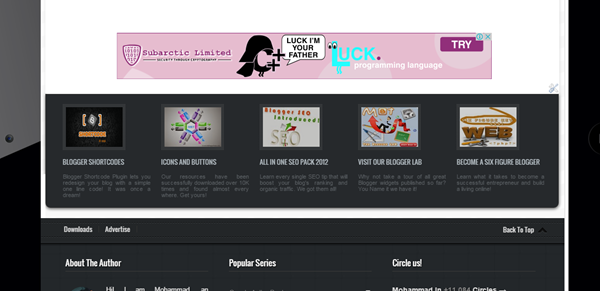
Adsense ads on ipad mini


iPhone Portrait view  (300 X 250 Ad Size)
Adsense ads in portrait view


iPhone Landscape view (468 x 60 Ad size)

Adsense ads in landscape view

Need Help?

This is the first and only tutorial which guides you properly on how to setup Responsive Ads on blogspot blogs, if you need any help or further assistance then please feel free to let us know by posting your question in the comment box below or by joining our 24/7 Free Help forum.

In our next tutorial, we will discuss how to use display:none property to hide Adsense on small screen devices. Till then do experiment with the code above and do let us know your feedback. Peace and blessings buddies! =)


Now Check your AdSense Earning Reports inside YouTube Analytics!


YouTube


Are you a registered YuuTube partner, or aspiring to be one? YouTube Partners are high earners who make a living out of their passion for creating videos. And some are pretty good at it too. Thousands of people are now capitalizing over this opportunity. For them, the AdSense and YouTube teams want to make things easier, since a lot of them are giving feedback. And Google listens to feedback. So to make things easier, YouTube has now integrated your AdSense earnings right into its analytics, which means that you can now check your AdSense earnings from your Videos from inside YouTube analytics!


Previously, AdSense for Content Host earnings for partners were calculated and displayed inside the AdSense accounts. Now for a blogger (using Google Blogger or something), this might not have been a problem. But YouTubers don't especially like to go all the way to AdSense t check out their earnings, especially if the only source of their revenue is YouTube. Now though, with this latest update, such people can view their earnings without leaving YouTube!


YouTube Analytics


YouTube Analytics will now display accurate and consistent performance data for your videos. This won't change the way you are paid. You will still be paid via AdSense, and will see monthly earnings and other data you see on AdSense. The difference now is, you will get more comprehensive details about the sources of income for your videos.


The timeliness of earnings reporting has been improved to 24 hours after the end of the day, but you can still see page views and clicks. You can also review ads and manage ad blocking for your videos, just like in AdSense.


For YouTube partners, there are two major forms of income. Auction-sold ads, and reserve-sold ads. The auction-sold ads went to AdSense earnings before, and reserve-spot ads went to YouTube earnings. Both AdSense and YouTube reported their own respective earnings. But now, all earnings related to your videos have been integrated into YouTube to form a more streamlined feature which will help you keep track of your total earnings and your video performance better.


This new feature is aimed at reducing confusion, and helping YouTube partners grow by making things simpler for them, leaving them to focus on their video performance. Are you a YouTube partner? How do you like this new change? Leave your interesting comments below. And feel free to ask any question too.


A humble request: Please try to stay interactive when you post your comments, and avoid promoting your respective blogs and/or websites. We respect your right to advertise yourself, but our aim is to build an interactive community, where people interact with each other, rather than promoting their respective web domains. And please, also avoid the cheesy and artistic signatures, as they can be considered akin to spamming. Please also understand that this request comes from the fact that we want to respond to every comment or question you might ask. And if you spam and leave out cheesy comments just for the purpose of promoting yourself, then this hinders the conversation process. Hoping for your co-operation. Thank you :)

Publishers can now review Ads Landing Pages in AdSense


Google AdSense


Google AdSense empowers you with a host of options and features with which you can keep your ad-marketing campaign going smoothly. You have an Ad Review Center, where you get various controls that help with the management of ads on your site. Among other features (see a list of latest AdSense features here), you get the luxury of finding and reviewing quickly and efficiently, hence saving you a lot of time. But that's something we all already knew about. However, Google has very recently introduced a new feature in their Ad Review Center. Previously where you could only review ads themselves, now you can also review the landing pages they lead to.


How would this help?


Some of you might be saying 'meh, big deal' at this point. But if you've guessed the implications, then I'd like to congratulate you on your wit :D. Anyhow, this feature will help publishers align their website (content and ads) towards the users (we all know how big an issue user-friendliness is with Google).


Previously, you could only review ads, and see if they weren't irrelevant, or not suited for your audience. Now, you can also review the landing pages they lead to. This way, you can gauge your users' reaction ahead of time, and make adequate adjustments. For example, if you see a landing page that you think your users won't like, you can opt out of that ad.


Examples of landing pages where users might not comfortable can be irrelevant pages, cramped and spammy landing pages with a lot of ads or calls to action, inconvenient pop-ups, difficult navigation, and so on. As a general rule of thumb, if you don't like the page after clicking on the ad, then your users won't like it either.


How to get this feature?


Log into your AdSense account, and click on the Allow and Block Ads tab. Here, you can review individual ads. Hover over any ad, and you will see a magnifying glass appear on its bottom-right corner. Click on this to see the ad and the landing page it leads to. Easy as pie :)


Do note that this feature is currently available only to those accounts which have their language preference set to English. Google, however, is trying to add more language support. In the meantime, please feel free to ask questions in our comments section if you have any confusion. Stay tuned for more updates :)


P.S. Please try to keep your comments and questions as relevant as possible. This ensures easier and faster replies to your individual queries. Thank you for your cooperation :)

Now you can Contact and receive free consultation from AdSense!


Google AdSense

The AdSense team, as you know, is quite eager to work with publishers, because Google values them for the sake of its interest. AdSense has always been helping out publishers by providing access to many tools and resources for problem solutions, such as FAQs, the Fix a problem troubleshooting section, and the AdSense Academy. Now, AdSense is bringing in another feature; a new personalized contact options page. There is a tab called HELP at the top-right, using which you can find solutions to your queries, or send feedback to the AdSense team by automatically sending a snapshot of the page you are on. A really great flexibility for AdSense users.


Recommended for you: Complete List of AdSense Features released in 2012


Contact options page


This new contact options page will now act as a central source for most commonly used troubleshooters. This means that you will find solutions to most of your problems under 'one roof', which will help you solve your queries within minutes. 


Another great thing about this new page is that, some troubleshooters will lead you to contact pages related to different issues. This will speed up the process, since the email messages will be sent to respective departments or teams. Google has also developed some automated tools that enable it to reply to queries sometimes within hours!


Free consultations


This contact options page is available to everyone who has an approved Google AdSense account (banned or suspended accounts do not count). Such publishers also have access to the troubleshooters, and specialized contact forms. To see these features, simply follow this link to the contact options page.


However, if you are a high earner, and have a revenue of $25 or above per week consistently, then you qualify for some special treatment :). This special treatment includes free consultations with members of the AdSense team via email! These members will help you manage your AdSense account, and/or discuss strategies to grow your business. Accounts that qualify for consultations, you will see an alert notifying you on the contact options page.


As was the case with Premium AdSense Publishers accounts, Google closely monitors your progress over a long period of time, and only then deems you fit for qualification. So even if you have a revenue of more than $25 per week, you might not immediately be able to see this option.


Are you excited about this new feature? AdSense is working hard to help out publishers, which will ultimately help Google in turn. Whatever the reasons though, publishers don't have any complains to make regarding this, because it'll help themselves. So, are you excited? Let us know what you think. Cheers :)

Tips to Protect your Adsense Account against Bad Clicks and Invalid Activity


Avoid click fraud

Have you ever wondered how Google actually generates an income? It has a very large network of ads, with which it earns and also shares some revenue with publishers (people who put up AdSense ads on their websites). It's a very elaborate system, with Advertisers trusting Google, and investing their money with it in order to grow their own exposure. Google then shares some of that revenue with the publishers. Now it naturally follows, that Google has to make provisions to maintain the trust of its advertisers, and for that, it has to ensure that publishers don't cheat, or use fraudulant methods of clicking on ads to glean more money out of advertisers. Such bad clicks might result in the ban of your AdSense account. So what can you do to prevent such a thing from happening, even if you're not creating any mischief on your side?


Unfortunately, this happens to the best of us. You can't always control invalid click activity on your blog. Indeed, there are some bad fish out there who feel jealous or threatened from other blogs, so they perform invalid click activity in spite. In this way, even good publishers might come under the spotlight, let alone bad publishers who get banned outright.


If you were in Google's position, you would see how bad clicks are against the best interests of Advertisers, and ultimately those of Google. Advertisers wouldn't like it if they had to pay extra for clicks that didn't really help them. So Google has some tools that keep bad traffic and bad sites out of their network. Unfortunately, these tools can't tell when you're a good publisher who is just subjected to unknown bad-click activity. So to solve this problem, here are some changes Google is making that you might find helpful.


Trusted publishers


Google will now be considering tenure more actively in response to detected invalid activity. If you are a good publisher, and don't have a notorious history, Google will just suspend your account, instead of terminating it. So you should always try to keep it on the safe side of Google. Also, Google is working on a new system wherein it will work more closely with publishers to ensure that they don't even face the inconvenience of getting their accounts disabled, provided that they are trusted publishers.


Activity reports


Google also will send you emails and notifications in case invalid activity is detected. It will let you know about the type of activity, so that you can get to root of the problem. It will also provide you further instructions on getting rid of the invalid activity. So keep checking your email at a regular basis.


Support


Google is now providing publishers with tools to help them submit appeals. The new forms let them tell Google about their plight in more detail, and provide more information. This would hopefully improve the process of submitting appeals and reconsideration requests to Google.


Google has also launched an expanded AdSense Academy, which will detail beginners and pros alike on the do's and don'ts of AdSense. In addition, Google is starting a video series that will explain AdSense policies, and discuss best practises.


We're really looking forward to seeing these changes being implemented, and we'll keep you updated on the latest happenings in this regard. Stay tuned, and keep reading :)

Who is a Premium AdSense Publisher?


Google Premium AdSense Publishers


In any business institution or organization, people who bring in good value are usually rewarded. Like many online companies, Google relies upon ads for its business. The more ad-clicks you get on your website, the better it is for Google, because Google ultimately gets a portion of its AdWords share. Just like most companies, Google has an incentive program with which it rewards AdSense publishers who bring in lots of click, and effectively help Google as well. This incentive program is dubbed "Google Premium AdSense Publishers". Many of our readers have had some confusion regarding Premium AdSense Publisher accounts. So that shall be our point of focus in this post today.


How to become a Premium AdSense Publisher?


A Premium AdSense Publisher (PAP) is a special publisher who gets premium services as mentioned above. PAPs have a huge traffic, and a high CTR, which is the reason why they stand out from normal publishers.


To become a PAP, you first have to pass a loyalty test. Not everyone can participate in this program. There's a minimum threshold that needs to be met first. You have to have at least one of the following;


  • A minimum of 1 Million pageviews per month - In other words you must have a daily traffic of at least 10-20 thousand pageviews.

  • At least 100K-150K search queries per month - This approximates to around 5 thousand search queries per day.


As you can see, both these figures are pretty high, which is why it is very difficult to become a PAP. PAPs have a high CTR - more than 100 clicks per day - which is why Google is interested in them.


Google AdSense


You can't apply to become a premium publisher. Google will induct you automatically if it believes you deserve it. AdSense will monitor your traffic for a long time, so you have to be above the threshold consistently. It might take a long time, maybe years, to become a publisher. It took Mohammad 2 years to become a premium publisher. So even if you have met the threshold, you need to wait it out until AdSense finally decides to give you PAP privileges. The wait is long, yes. But the rewards are well worth the effort!


Perks of being a premium publisher


There are many benefits of being a PAP, some of which are;


Extra ad units - You can display more than three ad-units per page! Normal publishers can only add three content ads per page. But premium publishers can add more! These extra ad units have a special ID which differentiates them from normal ads. Check out the following post to learn about this.


Third-party ad-serving - Premium publishers can serve third-party ads using their Doubleclick For Publishers account. Find out more about joining DFP for small businesses.


Special monthly consultations - This is probably one of the most valuable perks PAPs get - they get all the support they need! A special consulting agent contacts PAPs, and sets up a meeting on Google Calendar. You can get the support you want. Mohammad just had his consultation for January, so it's not something Google only advertises. They do contact you personally if you're a PAP.


These agents provide suggestions related to ad-placements, and tips on increasing revenue. PAPs also get invitations for AdSense seminars/webinars and workshops.


Ad-customization - Normal publishers can't change AdSense ad codes to make them look different, because they run the risk of getting their accounts banned. But premium publishers have no such limitation. They can change size, format, text color, background color, theme, and a lot more! They can also remove the 'Ads by Google' label on ads to make them look more professional.


Negotiable terms - Premium AdSense Publishers can also negotiate terms of their contract with AdSense. Normal publishers have to go with the fixed AdSense rates. But premium publishers can negotiate, and adjust their rates with AdSense, which is quite a huge benefit.


Besides all these features (and more), premium publishers also enjoy all the benefits normal publishers have. So what are you waiting for? Start working on your traffic, and start making a full-time passive income from your blog! Wish you all the best :)

Animated Google AdSense Ads [Videos]


Google AdSense


As it would seem, Google is putting up quite some effort into improving upon their AdSense program. A couple of months ago, we saw new, larger ad units released by Google, and this was just one of the many features introduced in 2012. More recently - this week in fact, Google introduced free video-ad serving for people using Doubleclick For Publishers. And now, it seems like Google is introducing a whole new feature - animated ads for AdSense. This could well be one of the biggest changes in years!


Recommended for you;


Animated ads?


Yep, that's right! Animated Ads! Google is working on ads that will animate, i.e. reform and change their formatting when you hover your mouse over them. Previously, ads could only be highlighted upon mouse-over. But now, they will change their fonts and reform themselves!


Initially, you can spot these ads from the large title text font sizes, with arrows next to them. When you over over them, these ad titles will change their size, and the ad will animate into a normal looking ad with more information such as link etc. You can then click them as you please (not that we'd recommend it, what with Google getting all paranoid on self-clicking :P).


If you want to check these ads out, check out these videos posted by @incrediBILL at WebmasterWorld.


Here is another video for the skyscraper ad unit.


Why can't you see animated ads on your site?


If you don't see these kind of ads on your website, don't worry. We don't see them either. I just noticed them on other websites, and considered them worth mentioning. Google is only experimenting with this stuff, and there has been no official announcement. So we can't say anything yet, because we don't know whether Google intends to keep this feature, or withdraw it - it  might depend on statistics and user feedback.


From the looks of it, not all ad units are animated. Presently, the 160x600 and 336x280, and some others show this feature. If some other ad unit is working for you, then feel free to tell us about it in the comments below!


What could this mean?


As a publisher, this could mean a lot for you. I am talking from the revenue point of view. These new ads sure are attractive (your opinion on this might differ), and can serve to boost your CTR. But we can't be sure of anything just yet. For all we know, they might reduce CTR, and even slow down your blog!


It could also mean that Google is trying viciously to get back on its AdSense game, and make people realize that AdSense is just as good now as it was (long ago). Whatever will actually happen though, is something for time to decide.


Do you see these ads on your site? If so, please tell us about them, and also share whether or not they've had any effect on your CTR. Stay happy, and keep sharing :)

6 Advanced AdSense Optimization Tips for increased ad Revenue


So, we've been talking a bit about AdSense lately. Yesterday, we talked about how AdSense now offers free video ad serving. But to be more specific, we are here to talk about AdSense tips to optimize your ads and increase your revenue. Are you utilizing all the potential of your AdSense ads to make money? If you feel that there are still some untapped potential in them, you might want to think over your AdSense strategy again. A few days back, we shared some basic tips for optimizing your AdSense ads. Today, we shall continue on with some more advanced tips you should tally with your blog, and see if you're applying them or not.


1. Find out what your best performing ad unit is


Google AdSense will always load the best performing ad unit on your site first. So if the connection between your server and the user is slow, and if all ads aren't loaded, then this ad unit will have the highest chance of getting loaded. So to take advantage of this, you need to place the code for that ad unit first in your HTML source.


This is easy. To do it, you simple have to navigate to your beginning body tag, and then create a div tag right underneath it, and insert the code for the ad unit in that div. Here's how;


<body>

<div id="ad1">

Insert the code for the ad unit here</div>


2. Sort out crawl errors


If the AdSense crawler can't properly crawl your pages, your ad units might return irrelevant ads. If you want the most accurate and useful ads, you should check to see if you don't have any crawl errors. You can do this by logging into your account, and going into Account Settings. You will find if you have any crawl errors for any of your websites there.


Crawl errors


Check this Google article on how to fix crawl errors.


3. User experience


The internet is so filled up with information now, that no matter what content you crate, chances are that it has already been made in one way or another. So what would diffrentiate your content with that of your competitors? Your website's user experience will, because that is one of the few chances you have of getting a headstart.


When a user lands on your page, you only have a few seconds to make an impression, something which you can only do with a good user experience. Good user eperience features include fast load speed, good layout of your content, nice color schemes, interactive interface with an easy navigation, quick links, and so on.


4. Use Google Plus more


Creating and maintaining a Google Plus page is the key to success now, whether you like it or not. It can be used to share your videos, posts, pictures, and more. People can +1 them, which is basically a recommendation for others to check your posts out. Google apparantly wants you to use its social network more often. And if you want success, that's just what you'll have to do.


5. Use DFP


Yes, we talked about it yesterday.You might be using other ad networks alongside AdSense on your site. Doubleclick For Publishers (DFP) is a Google-hosted tool that helps streamline the process, and makes it easy to serve ads fromdifferent ad networks. It gives you a vast array of features, such as the free video ad serving feature we talked about yesterday.


6. Go mobile


Last, but not least, make your website mobile! You can create and serve multiple versions of your site, depending upon the user agent client that requests the data. The market is growing rapidly, and it'd be a good idea to capitalize on this opportunity, and convert visitors into bucks.


That's it for now. Try implementing all of these tips. If you run into any problems, feel free to ask in the comments below. Peace :)

Video ad serving is now available in DFP Small Business for free!


Video ads

Using videos in your content is considered as one of the most effective presentation technique. It helps with visual aids, and makes it easier for the listener audience group to grasp your message. Indeed, serving videos is one of the effective ways of attracing traffic. And just like other content such as text and images, videos have great revenue potential. This means, that if you have a substantial video viewership, you can use that traffic to earn revenue for you through ads. And generally speaking, video ads sometimes tend to perform better on the revenue side when we compare equal amounts of traffic for video content, and simple text/image content. Google understands this, which is why it has been working on video ad serving for some time. And now, it has finally announced its video ad serving feature, and a free and unlimited video ad serving trial offer to DFP Small Business publishers.


Wait, hold on! Say what? I know that some of you might have gotten lost. Worry not. We'll try to explain. Just like you can put up ads in your content (you can spot many on this very page), you can also put up ads in your videos (provided that you upload any). Video ads tend to perform better, because your audience can connect better with a visual presentation with audio and video. So they are more likely to click on it. Google has taken advantage of this opportunity, and released this video ad serving feature that will allow you to add AdSense ads to your videos. 


What can you expect?


With this new feature, you can upload and transcode video ad assets into a variety of formats. You can also display pre-roll, post-roll, or mid-roll in-stream ads for maximum effect. However, you should be careful about how many ads you put up. Mid-roll ads (ads in the middle of a video) are annoying. Post-roll and pre-roll ads seem to work best. But then again, that might not be applicable to your blog.


You can manage your video ads alongside your normal mobile and desktop ads in DFP Small Businesses. However, before you can access these management tools and features, you need to integrate with some video technology platforms to ensure easy implementation and optimal playback. (follow the link to find out more).


Free, unlimited video ad serving!


This video ad-serving feature is free for up to 400,000 impressions per month. But until the 30th of April this year, Google will offer you an unlimited trial offer, so that you can serve as many ads as you can, free of cost. After this trial ends, and if the impressions hit 400,000+, there'll be a noinal charge on CPM basis.


Remember, this is for DFP Small Businesses. If you would like to sign up, you can do so at this signup page. If you have further questions, feel free to ask. Create a DFP Small Business, and get busy monetizing :)


6 Ways To Optimize AdSense Ads To Increase Revenue


Yesterday, we talked about some things you should consider before starting off your blog in 2013, and in that, we discusses about some SEO-related things. For a lot of blogs out there, the major purpose is to make money, So today, we'll carry on the idea, and talk about Google AdSense. For beginners as well as advanced users, the start of a new year would be a good time to start thinking about your AdSense campaign. Are you making the most out of your ads? Now would be a good time to review your ad performance, and make changes accordingly. So here, we'll provide you with a checklist of 6 things you can do to optimize AdSense and make the most out of your ads.


1. Are you utilizing your ad spots?


This is the first questions you should be asking yourself. AdSense won't allow you to add as many ad units as you like. But are you even utilizing all the ad-spots that it does allow? For every page on your website, AdSense will only let you place three AdSense for content units. These vary in size, so you can utilize the best possible locations your ads can fit in. But you can only place one 300x600 ad unit. Apart from this, you can use three text-ad units, and two AdSense for for search boxes units. Before placing all these ad-units though, take some time to consider whether you have a sizable quality content to ad unit ratio. It just doesn't make sense if all the ad spots have been used, but there is no actual content on that page.


2. Take a look at your ad sizes


Generally speaking, wide ad units tend to perform better than tall ones. For example, the 728x90, 336x280, and 300x250 ad sizes are usually the highest performers. You should try on multiple ad sizes, and find out for yourself what works best for you. The ad size should also correspond to the placement of your content. For example, a tall and thin ad-unit doesn't make sense within a written post.


3. Use text and images too


Usually, publishers just focus on image ads, and forget about the other options available. Adding text ads is a good idea as well, because they compete with the image ad units for the same space. Using a combination of text and image ads can help you earn a lot more.


4. Add search boxes


As mentioned above, image ads are not the only thing in the world. AdSense will allow you two AdSense for search boxes units per page as well. They let you place a custom search engine on your site to provide users with web search. And you might earn from relevant ads on the search results page.


5. Make your ad units accessible


Pay special attention to where you actually place your ad units. They should complement, and fit in with your content. And also, users should be able to easily identify and access them. Generally, ads should be above-the-fold. Google offers a lot of guidelines to help you place your ads.


6. Check out color combinations


Last, but not the least, use trial and error, and play around with various color schemes and ad styles. They can play a big part in how much revenue you earn. There are three strategies you can choose from. Blend, Compliment, and contrast. Compliment is normal placement, where ad units are used within content, and are distinguishable. Blending ad units into content means using the same colors, so that it is hard to distinguish the ad unit. Contrast means you use contrasting colors that scream out an ad-unit's presence. You can use any of those, as long as you follow the guidelines from Google.


That was it for now. Stay tuned for more on AdSense. For any questions, please use the comments section below. Peace :)

You can now display just one 300X600 Ad Format on a page


google adsense limitationsBlogging is becoming the most promising online business gradually, however, there are few who find themselves lucky enough to enjoy a good revenue been generated through it. There is no doubt that advertisements act as the soul of earning and we must thank Google for introducing its AdSense program. It has been lately seen that Google seems more interested in targeting the issues of its clients and in order to enhance the earnings of the publishers, it has recently introduced a new 300x600 ad format, big enough to consume a large space of your blog. While the Publishers were delighted with the news, hoping to have more revenue, Google has announced that the new offer would also be having some limitations.


The Limitations


Considering the new format to be large enough, Google has now announced to have some changes in its policy to keep a balance in between the valuable content of the blog and the advertisements. If you were aiming high to achieve this golden opportunity by placing two or more 300x600 ads on your blog, this one is surely a bad news for you as you would now be permitted to place only one 300x600 ad unit on each page of your blog.


AdSense ad sizes


We previously saw that the limit for AdSense for content ad units was three ads per page, which is still the same, however, the slightest change is that you can now place only one 300x600 ad unit out of the three, choosing the two remaining ones of any other size.


Google states that the major reason for this limitation was to keep in view the needs of both, Users and the Advertisers. For those who have availed the offer to its fullest, placing more than one 300x600 ads on a single page, Google requests them to remove the ‘extra’ ads units by Jan 10, 2012 to avoid inconvenience. A notifying mail has been already sent to the affected publishers, asking them to make this update on their blog.


Although the news might not be a welcoming one for most of the bloggers, it is good to see that Google is taking interest and coming up with new strategies to enhance the online business for the publishers and the advertisers. It is soon to be expected that the team would announce new sizes and policies that would further contribute in boosting your earnings.


Share your views about it,


Wishes,


Fill up a simple Appeal form for Disabled AdSense Accounts


restore disabled AdSense AccountsWith an increasing awareness about the online earning business, it has been seen that people are opting blogging as their sole career. Whether you are a professional blogger or a newbie, there is no doubt that the revenue been generated through blogging, highly depends on the Google AdSense account. Where most of the bloggers find the service as a satisfactory tool to make money by providing spaces for ads, there are some who often complain about their AdSense accounts getting disabled for ‘invalid activities’.

Taking an action on the queries about this disabling of accounts without any good reason, Google has recently introduce an easy way to its publishers who have been suffering by a sudden full stop on their earnings, and also answering why do they actually suspend or even disable few accounts. Therefore, if you have ever been a victim of such a situation, there is all what you need to know.


Why Google Suspends AdSense Accounts?


While talking about how important publishers are for Google, The team mentioned that they invest a good deal of time and Dollars, both, to avoid the bad ads been published on the sites as well as to keep bad sites with inappropriate content out of their network. However, in order to control the accounts that sign up for AdSense to promote bad ads and bad clicks, some of the publishers suffer invalidly. It is quite justified too because each day more than a hundreds of users apply for an AdSense account and to monitor such a huge record is done by specially designed tools and methodologies, that again, might misinterpret some ‘innocent’ content too.


What to do With Your Disabled AdSense Account?


Previously, AdSense team seemed much cruel in case of any account getting disabled; there was no reason provided that why actually the account has been terminated. But as Google says, it has reasons for everything it does. With the new policy that has been announced by Google AdSense team, publishers would get their questions answered. According to Google, it would now take the following actions to facilitate the ‘innocent’ publishers to enable their account again.


1) The accounts that would be detected for an ‘invalid activity’ will be now be suspended for some time rather than getting terminated in the first place.


2) Google has come up with a new form service that works as a tool for the publishers who find their accounts suspended. Filling this form will stimulate the process, bringing the issue under the consideration of the officials.


3) Although Google is strict about the violations of the rules and regulations that the publishers must follow, the team will now provide more details on invalid activity’s causes. (Read about the causes of invalid activity at Ad Traffic Quality Resource Center)


4) Once a violation is detected, the publisher would receive an email, notifying about which rule has been violated and what should the publisher do to avoid suspension.


5) To make things easier to understand, Google dedicates a video series that explains why some policies exist and how can one make sure that he is working with them. The first video specifically targets the issue regarding invalid traffic. Have a look!


getting their AdSense account terminated without any reason was a serious problem for the publishers who look forward to have consistent earnings through their blogs, Therefore, this initiative, though small, but active, has been welcomed by the professional publishers. Moreover, Google seems determined in coming up with new updates to prevent the unnecessary termination of AdSense account.


Share your views about it, :)


Blessings,


Search For Adsense Ads by Image using Ad Review Center Tool


AdSense Review Center

Have you ever considered grabbing more control over your AdSense ads through, say the AdSense Ad review center? The Ad review Center is a really powerful tool that lets you tweak the settings, and control ads that appear in your site's ad units. Following a set of changes and improvements from Google earlier this year, that gave this useful tool even more power and reliability, Google has now introduced another remarkable feature - image filtering. This new feature will let you find ads, and review them very easily and effectively, hence saving your time.


Recommended for you: How to Block annoying AdSense Ads using Publisher Toolbar?


What's the use?


This new feature makes use of the same technology as Google Image Search. You can upload an image from your computer. And this tool will then use the technology to search for similar images, and will return ad banners that have a similar image in them. You can then review such banners, and take an appropriate action.


This comes real handy when you want to not display an ad banner that has, let's say, the logo of a competitor of your site. Seems logical? You can simply take a screenshot or image of your competitor's logo, and then upload it to this tool. You will then see all ad banners that have that logo in them. You can then block those banners. Simple!


To use this feature, simply log into your AdSense account. Then go into the 'Allow and Block Ads' tab. There, you will see this feature, with an option to upload an image etc.


Allow and Block ads


Limitations


Currently, you can only upload an image of maximum size 2 MB, and a max dimension of 1024 pixels. Also, this feature for now only returns image ads. More functionality will be added later on, and we'll keep you posted about it :)


We'd recommend you use this tool rarely, and with care. Only block content that you absolutely don't want to appear, because blocking ads is generally not a very good idea. It isn't a good revenue generating practice, and can reduce your revenue. So be careful! Good luck :)

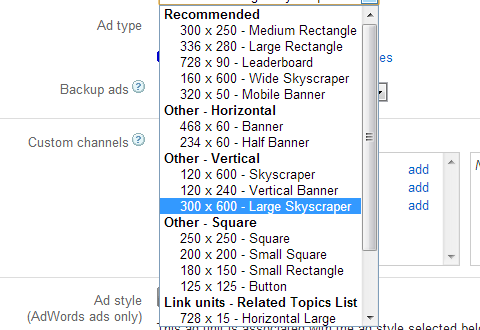
300 x 600 Largest Ad Size Now available in AdSense! - Boost CTR


AdSense biggest 300x600 Ad size


We have previously discussed about the different screen size available out there, and how to optimize your website for better experience on smartphones and Tablets. Since the evolution of the internet and the advancement in display technology, the number of pixels has been increasing, from the small VGA display to the current ultra-HD 2048 x 1600 display. So webmasters have been trying forever to make use of the high resolutions and to return better value to the users. This calls for a redesigning of most major aspects of a site. Fortunately, Google AdSense team is here to help in the process. On popular demand, it has just announced a new ad size of 300 x 600 for webmasters who use AdSense. And that is the largest skyscraper ever that will surely boost your overall AdSense earning by increasing the click through rate (CTR) of all your pages.


From Mohammad:


 At present the skyscraper
appears half filled and half vacant because advertisers just got
familiar with the new size and it will take 2-3 days for the Adsense
Adword market to update their campaign Ad display size and design new
banners that could fit the size of 300 x 600. The new big fancy banners
are on their way and will be ready to add a new boom to your overall
adSense earning. 


We highly recommend that  you add the skyscraper to middle half of your blogs in the sidebar area to make sure to increase page CPC to its maximum. You can keep the sidebar layout to 300px in width.


Responsive web design


One frequently used term with regards to varying screen sizes is Responsive Web design. Responsive content adjusts itself based on the screen size of the user's platform. For example, it could replace the ordinary 300 x 300 ad unit with a smaller, 150 x 150 one if the user's screen size is less than (or equal to) 600 pixels wide, or something similar - since a 300 x 300 ad would take up half of the screen that is just 600 pixels wide, which is not recommended.


In this way, elements on your webpage 'respond' to the user's platform, and adjust themselves accordingly. These new ad sizes of 300 x 600 could come in handy for webmasters who want to return a more appropriate ad size to the user agent.


About the new ad size


The 300 x 600 ad unit, also knows as a half-page unit, goes into the 'large' category, and offers a larger space to advertisers to advertise their content, and offer users rich engagement. And so far, it seems to be pretty popular, and is one of the fastest growing ad unit sizes by way of impressions. So for publishers, it could be a better trade-off between ad space and ad revenue. It also shows advertisers prefer the larger ad size, since it better promotes their product(s).


Since this ad unit is so recent, it currently only shows text ads. It'll take some time before a range of display inventory are added. So instead of worrying about the content that is being displayed, focus instead on where to place the ad, because it could play a part in your impressions. Read the following post to get a better idea.


Got any questions? Feel free to ask, and we'll try helping you all out. You can also give feedback about this ad unit size on the AdSense Plus Page. Happy monetizing :)