How To Add Twitter Follow Box In Blogger Blog

Recently, I deleted a post with title "Cool Twitter follow box for blogger" because it is not working anymore. The site which created it has stopped their service, so I decided to create another post about twitter follow box because it is a very important gadget just like Facebook like box. So in this post I am going to show you how to install Twitter follow box in blogger blogs. This gadget is powered by Twitter so you need to create a twitter account, obviously you have a twitter account because you are installing the gadget to get followers. So lets install the Twitter follow gadget, you can see a demo of Twitter follow box here. Sorry I don't have a live demo! You can install this gadget in light or dark theme. If you have a blog with dark theme then white theme twitter box is best for your site and similarly for white theme you should install black twitter follow box. Also you have other things that you can customize in the twitter follow box.

How To Add Twitter Follow Box In Blogger?

Step 1: Go to Twitter and Login to your account.

Step 2: Open Twitter Widgets Page.

Step 3: Enter your twitter profile URL and press Enter button.

how to create twitter widget blogspot

Step 4: Click on Set Customization Options.

how to embed twitter widget in blogger

Step 5: Customize your gadget, Set height & width, Set light or dark theme, Set color of links, Set language or leave Automatic option and finally after Customization click on Update.

how to customize twitter widget for blogger blog

Step 6: Copy code of your Twitter follow box.

how to install twitter follow widget in blogspot 101helper

Step 7: Go to Blogger Dashboard > Layout > Add a gadget > Html/Javascript and paste your code in Html/Javascript window.

how to add gadget in blogger layout

Step 8: Click on save and you are done.

Open your blog to see your twitter follow box. I hope you like this post and found it helpful. Share this post with others and let me know if you have any suggestion or problem.

Thanks for visiting 101Helper

❤ Happy Blogging !

Search tags:  twitter follow box widget for blogger/blogspot, twitter follow button for blogger, twitter follow box embed code,twitter follow box for website, 101helper gadgets for blogger

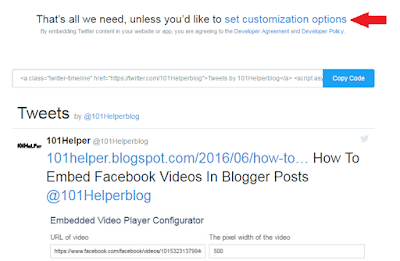
How To Embed Facebook Videos In Blogger Posts

Videos, either they are on youtube, dailymotion or facebook. Everybody wants it to be popular and shared so that it could get millions of views. Specially vloggers(Youtube Earners) wants alot of views to get maximum of their videos. So in this post I will show you how to embed Facebook videos in blogger. You might be thinking why should I embed Facebook videos in my blog if I can embed them directly from my youtube channel. Well because if you embed Facebook videos in your blog, you will not only get views but also Facebook likes. So its beneficial for your Facebook page as well as your youtube channel.

How To Embed Facebook Videos In Blogspot?

Follow below steps to embed Facebook videos in your blog post or layout.


Step 2: Replace video URL with your Facebook video URL.

Step 3: Set width of the video in the input beside the video url.

Optionally, if you want to include full post along with video then simply check the Include full post checkbox.

Step 4: Finally click on Get Code button.

You will find two codes, one is the Javascript SDK code and other is Video code. Now you have the option to add a simple <iframe> code instead of the Javascript SDK. So switch to it as its simple and easy.

how to add fb videos in blogger blogs

Step 5: Go to your post in which you want to add the Facebook video.

Step 6: Switch to "Html Post Editor".

add facebook widgets and videos in blogger

Step 7: Paste your video code in the Html Post Editor and publish your post.

You are done successfully, You can use the same code in Layout and show your video in sidebar or in footer or in header of your blog.

Search tags:  How To Embed Facebook Videos In Blogger Posts, fb videos in blogspot, add facebook video to blogger posts, add facebook video to blogger layout, 101helper blogging tutorials.

How To Put Ads Inside Posts In Blogger

how to add ads inside blogspot posts

A very rare information you will find online is "how to put any network ads inside blogger posts". You might find how to add ads below first image in blogger posts but not in the middle or 1/4th of the post. And they are really helpful in increaing revenue. So in this post I will show you how to add any network ads any where in the blogger blog posts. You can add any size ad e.g 300X250 or 468X60 etc.

How To Put Ads Inside Posts In Blogger?

Follow below steps to put ads inside your blog posts:

Step 1: Go to blogger dashboard and navigate to posts.

Step 2: Edit a post in which you want to add ads and switch Html editor.

how to edit post in blogger

Step 3: Find the area where you want to show your ad, for example above any heading or some text. Use Ctrl+F to find.


Step 4: Paste your are code above or below the heading. Make sure to add <br/> above and below your ad code because it will make some gap between your text and ad.

how to add ads inside blogger posts

Example:

<br/>
AD CODE HERE
<br/>

Step 5: Save and publish your post to see your ads live.

Don't overload your posts by adding too many ads. It will slow down your post. also you have to do this in every post, its not like that you will do it in one post and ads will start appearing in all.

I hope you found this post helpful. Don't forget sharing it. Thanks for visiting 101Helper.
Search tags: How to add ads inside blogspot posts, add ads inside blogger posts anywhere,add google adsense ads inside blog posts, ads below imagea in blog posts, 101Helper blogger tutorials.

Search tags: how to add ads inside blogger posts, add any network ads anywhere in blogger blog posts, add adsense,chitika,adhitz ads in blog posts,101helper blogging tutorials,put ads inside blogger posts

How to Add AdSense Page-level ads in Blogspot

Recently, page-level ads were made available for blogspot bloggers and webmasters which means that you can now display AdSense Ads right on your mobile templates. You can now monetize your efforts on the templates as you do with mobile apps thanks to the Google Admob Ads.

Why Choose AdSense Page-level ads?

There are a number of reasons why you choose page-level ads from AdSense to bolster your revenue stream.
  • Increase Revenues
  • Provide Better User Experience
  • Two New Formats
  • Doesn't Count Against 3 Ad Limit
  • Optimized and Responsive to Mobile Needs

Page-level Ad Formats

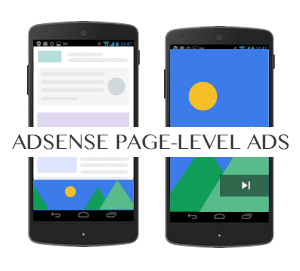
Today, the two types of page-level ads available include Anchors which are ads places at the bottom of the screen and Vignettes which are full screen ads that work similar to Admob's Interstitial adverts.
Vignettes tend to be more effective for mobile advertising.

how to add adsense page-level ads in blogspot

How to Setup Page-Level Ads in Blogspot Blogs

The good news is that you can install these ads from AdSense fairly quickly and easily thanks to the process which guides you through.

1. Log into your AdSense Account
2. Click on this link
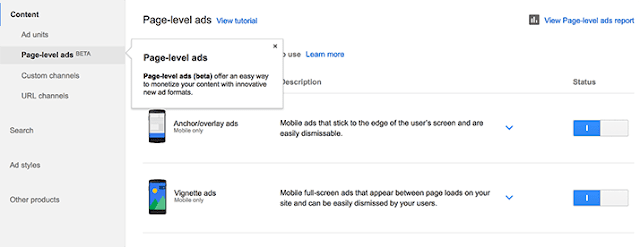
3. Click the two toggle buttons to switch on "Anchor/overlay ads" and "Vignette ads"

enable adsense page-level ads in blogger

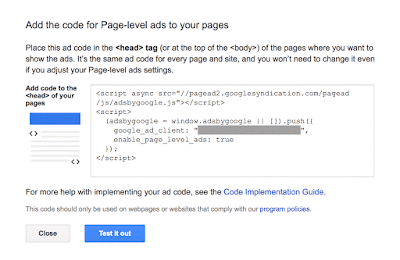
4. Scroll down and click the "Get Code" button

enable adsense page-level ads in blogger

5. Copy the code

google adsense page-level ads code

6. Go to Blogger, then Template and Backup your Template
7. Click the 'Edit HTML' button and search for the </head> tag
8. Paste the page-level ad code above the </head> tag

Note: You will also need to replace the attribute async with async="async" in order to help complete the process, otherwise Blogger will give you an error message. Once you have completed these steps, all you need to do is save it to your template.

Test Page-level ads in your Blogger template

After installation, get out your mobile device so you can test the AdSense page-level ads and see if they are working correctly. You will need to be a visitor to your site in order to check out the ads.
  • Type #googleads at the end of the URL so you can access them
  • Select the ad format from the tabbed box that will appear above the body of the blog
  • Check out the ads
You will get to see the ads in action before the public does so that you can tell if they are working fine. If you are impressed with what you see, then it is ready to go. However, if you see something that you want to change or if the ads are not present, you'll need to start over again.

The Effectiveness of Page-level ads

Since October, 2015 when these ads were first rolled out the effectiveness that they have demonstrated is considerable. Today, the ads have been used in countries all over the world and they continue to impress. For those who have already used these mobile ads on WordPress or other blogger blogs you can see just how effective they have been in terms of reaching all of your visitors. In addition, the effect on your revenue may be considerable depending on the popularity of your blog.

In the end, AdSense page-level ads are remarkably effective for mobile use and will help you build a stronger income base for your blog.

How to Fix Mixed Content Errors in Blogspot Blogs

With HTTPS now automatic in Blogger the benefits have been considerable. However, there are some issues that are now facing bloggers thanks to this change in policy and one of the most common is mixed content errors.

What are mixed content errors?

This is when a web page becomes secured by SSL, but it contains both secure HTTPS and also the non-secure HTTP which is usually links, scripts, style sheets, video, and images. This results in browser errors that negatively affect the performance of your website and cause security issues. This means that source codes such as template, layout gadget, and post and paste may be causing the issues in the HTML side of the equation.

http to https

How to identify mixed content errors?

This is a fairly straightforward process that you can use through Google Chrome:

1. Visit blog using HTTPS, for example - https://yourblog.blogspot.com
2. Access the Chrome Menu at the top-right of your browser window and go to "More Tools" > "Developer Tools" and switch to the "Console" tab or use the CTRL + SHIFT + J keys to open the JavaScript console
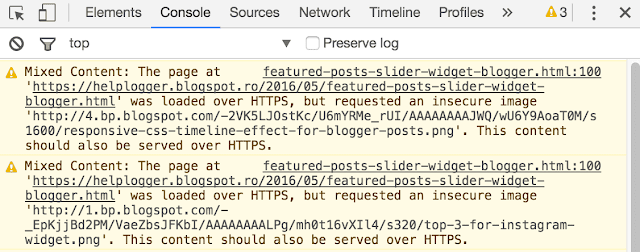
3. Look in the Console for mixed content errors which will look similar to these:

mixed content, chrome console

Examples of mixed content errors include, but are not limited to the following:

- Insecure Script Request
- Insecure Image Request
- Insecure URL Request

You should list all unsecured URLs and visit the other pages on your blog to check for other mixed content errors.

Fix the mixed content errors in a Blogger template

To fix the errors encountered which may be found in the template or layout, you will need to do the following:

1. Go to Blogger and select your blog, then click on "Template" and press the "Edit HTML" button
2. Click anywhere in the code area and press CTRL + F to search for http://

http:// to https:// blogger

3. Replace all http:// prefixes with https://

Verify that the new URLs using the HTTPS addresses work by opening them in a new window on your browser. If the links you are receiving provide the same results, then you can Save Template.

To check for layout errors:

Go to Blogger and click on 'Layout' > check for any HTML/JavaScript gadget and click 'Edit' on each gadget. Replace all http:// prefixes with https:// then verify that they are working and hit Save.

Fix the mixed content errors in Blogger posts and pages

To check for post and page errors, do the following:

1. Log into your Blogger Dashboard and select your blog, then click on 'Posts' or 'Pages' and select any post or page > hit the "Edit" link below the Post/Page title.

2. Once the Post editor opens, switch to the "HTML" tab and press CTRL + F keys to look for http:// prefixes. After you found them, replace http:// with https://

fix mixed content errrors

Be sure to verify that the new link works by opening up your browser and testing them. After you've tested them, hit Update.

Update to the Blogger post editor to fix mixed content

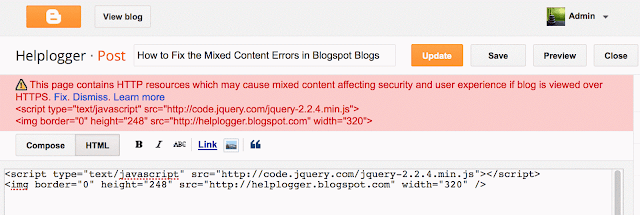
To find and fix mixed content errors automatically, Blogger has released a warning tool that alerts you to possible mixed content issues in your posts. All you need to do is go to "Edit" inside a post, switch to the "HTML" tab and hit the Update button. All of the errors will be presented along with the ability to fix them. Once they have been corrected, hit Update.

mixed content error

In the end, fixing these types of errors will greatly improve the performance of your blog, particularly when it comes to pages that may have this particular issue with mixed content generating errors. It also applies to custom domains as well as long as you have an SSL certificate. All it takes is a few minutes and you can greatly improve your blog site that has been impeded with mixed content errors.

How To Use Dynamic Description To Boost Traffic From Search Engines

seo optimization tutorials 101helper blogger

Post description and blog description are very important, not because it tells visitors about your blog or post content because nobody reads it, I am talking about me, I don't read description of a site... Don't know about you :P . To me blog or post description both are just a way to show posts and blog on search engines. Because I use keywords in description so that search engines show my blog when someone types a relevant keyword which is present in my description.

But what if you are using best keywords and still you get only fewer views or no views from search engines? if its happening with you then it means that the description that you are using is not having keywords which visitors are searching, so you need to find these keywords and replace them with existing ones.

One best way that you can use to find best keywods for your content is to use Google Trends. You can guess keywords too, which you think vistors can use to search but accurate keywords are those which you will find in Google Trends.

Another way to find best keywords is to find similar sites to your site which have good traffic and grab the keywords that they are using and put them in your site. It will not cause a © copyright issue.

So Dynamic Description is description that is variable and changes according yo demand. For example I have post about blogger templates and I created it in 2016 and in description I wrote "best blogger templates 2016" and now its 2017 and the visitors are searching for "best blogger templates 2017" now I may get my blog indexed in 3rd or 4th page of search engine results but there are more changes that other sites having 2017 In there description will get indexed on first page. So I need to update my description to get my blog indexed on the first page.

You have to change your blog or post description frequently to get + positive results. So dynamic description is a way to increase yraffic from search engines. And if you get traffic from search engines, it means you are a successful blogger!

One last thing that I am going to tell you in this post is that if you change description again and again, you will need to wait for atleast 1 week to let search engines crawl your site and update the description. Which will definitely take alot of time  because you will not get the best results from first changes but you might need to change description several times until you get some + positive results. So I brought a simple solution for this, now you don't have to wait for a week but you can set a time after which search engine robots will recrawl your site.

So you can change, watch results and see if its improving your traffic or not.

The solution for fast crawling is a meta tag mentioned below. You need to put it in your blog's template below <head> and set the time after which robots will crawl your site again.

<meta name="revisit-after" content="1 days"/>


Remember that too much crawling of a site is not good so you need to change your description between given time and look for + positive results. After getting more traffic remove the meta tag.

I hope you found this post meaningful. If you have any doubt, questions, suggestion and want to send us feedback, please leave a comment below.

Read others posts and don't forget to share atleast one post.

Thanks for visiting 101Helper, do visit again!

Search Tags: How to get more traffic from search engines, how to use description to boost traffic in blogger, how to update blogger blog faster in search engines, increase organic traffic to blog, Seo optimization tutorials blogger

Automatic Featured Posts Slider Widget for Blogger

Anyone with a blog wants readers to stay rather than move on to another. It's not being selfish but after someone has read one post, you'd definitely want them to read another, right? After all, isn't it one of the tenets of SEO to make people stay longer on your blog if it has to have a fighting chance at the rankings game?

The question now is: how exactly do you entice them to read a few more of your blog posts?

First off, you don't know exactly what brought a reader to your site. Well, you sort of do, if you have Google Analytics and all that. But that's beside the point. It wouldn't be productive for you to stare at GA the entire day hoping that it will tell you that yes, someone has been perusing your blog.

The point being driven at here is that you have to offer more on your blog. It's not enough that you get traffic from search engines and other sites; you also have to add some extras that will entice visitors to stay longer.

How exactly do you do that?

The Tactics of Persuading Users to Stay

Bloggers have employed a variety of tactics to persuade readers to stay. For one, they load the sidebar with widgets for Popular Posts, for example. Of course, it would be in the interest of your readers to know which other posts on your blog are gaining traction. Maybe those pieces are of interest to them as well. As a result, you've got one surefire way of making readers stay.

Now, what if you want to highlight Featured Posts, for example? Let's say that your blog has been around for a number of years and in that span, it has produced some great content that received quite the number of shares, likes, +1s, comments on so on. Wouldn't that be the kind of post you want featured? Unless your reader was looking for that topic specifically, there's little chance that they might uncover that gem if you don't bring it to their attention.

Thankfully, it's quite possible to add a Featured Posts slider for Blogger. And if you don't know how to make one yourself, this is exactly what this post is for. Here's an awesome Featured Posts slider widget that you can use on your blog.


How to Add Featured Posts Slider Widget in Blogger

1. Go to 'Layout' > click the 'Add a gadget' link in the sidebar area and select 'HTML/JavaScript' gadget from the pop-up window.

2. Add the code below inside the empty box:
<style type="text/css">
ul.featured-widget-list,ul.featured-widget-list li{margin:0;padding:0;list-style:none;position:relative }ul.featured-widget-list li{display:none}ul.featured-widget-list li:nth-child(1){display:block;line-height:0}ul.featured-widget-list img{border:0;width:100%;height:auto}ul.featured-widget-list .featuredbg{width:100%;height:100%;position:absolute;z-index:2;left:0;top:0;opacity:.6;background-image:url(https://blogger.googleusercontent.com/img/b/R29vZ2xl/AVvXsEjpb9xoZWB_ShrELvp3hSAWUF9waDzuNZCSFtNuhXFJ_8e2zyp0DzjjNk9eB0IsCYV6wI0xE3YmrMo8hiORtCk63pG-VsAAeDmo93Q5OuL809nO6x6b6kFfdZTGKpoqx1MwLYLKDxocdYE/s400/overlay-bg.png);background-position:0% 100%;background-repeat:repeat-x}ul.featured-widget-list .featuredbg:hover{opacity:.1}ul.featured-widget-list h5{position:absolute;left:0;right:0;text-align:center;bottom:10px;z-index:2;color:#fff;margin:0;text-transform: capitalize;padding:10px 20px;line-height:1.9em;letter-spacing:0.3px;font: 600 16px 'Abel', sans-serif;overflow:hidden}ul.featured-widget-list li:hover h5{bottom:30px}ul.featured-widget-list .featured-meta{font: 11px 'Abel', sans-serif;letter-spacing:0.3px;position:absolute;bottom:0;left:0;right:0;text-align:center;z-index:2;color:#fff;opacity:0}ul.featured-widget-list h5, ul.featured-widget-list .featured-meta {-webkit-transition: all 0.3s;-moz-transition: all 0.3s;-o-transition: all 0.3s;transition: all 0.3s;}ul.featured-widget-list li:hover .featured-meta{bottom:20px;opacity:1}.feat-buttons{position:absolute;top:50%;left:0;z-index:5;width:100%}
.feat-buttons a{text-indent:-9999px;margin:0 7px;width:15px;height:15px;padding:5px;background:#000;-ms-filter:"progid:DXImageTransform.Microsoft.Alpha(Opacity=60)";filter: alpha(opacity=60);-moz-opacity:0.6;-khtml-opacity:0.6;opacity:0.6;position:relative;-webkit-border-radius: 50%;-moz-border-radius: 50%;border-radius: 50%;}.feat-prev{float:left;}.feat-next{float:right;}.feat-buttons a.feat-prev::before, .feat-buttons a.feat-next::before{content:"";width:0;height:0;border-width:6px 7px;border-style:solid;border-color:transparent #fff transparent transparent;position:absolute;top:50%;margin-top:-6px;margin-left:-11px;left:50%}
.feat-buttons a.feat-next::before{border-color:transparent transparent transparent #fff;margin-left:-3px}
</style>
<div id="featuredbwidget"></div>
<link href='https://fonts.googleapis.com/css?family=Abel' rel='stylesheet' type='text/css'/>
<script src="http://ajax.googleapis.com/ajax/libs/jquery/1.8.0/jquery.min.js" type="text/javascript"></script>
<script type='text/javascript'>
//<![CDATA[
featuredbwidget({
listURL:"https://helplogger.blogspot.com/",
featuredNum:9,
listbyLabel:false,
feathumbSize:350,
interval:3000,
autoplay:true,
featuredID:"#featuredbwidget"
});
function featuredbwidget(a){(function(e){var h={listURL:"",featuredNum:3,featuredID:"",feathumbSize:300,interval:5000,autoplay:false,loadingFeatured:"nextfeatured",pBlank:"https://blogger.googleusercontent.com/img/b/R29vZ2xl/AVvXsEiKKaTwBLokJJY8ygp_4IvBSA8FCWIVe05p9rIpIObSG-76wOVyKbtlPGYwgNp6_9rWRneZvq2oIzs8hirlL2Y2dla3P_J8rErfEw5lNDmzinrbMMLTP_RK-T2S-YKmNdeme0vQuLOAPUc/s500/no-image.png",byMonth:["Jan","Feb","Mar","Apr","May","Jun","Jul","Aug","Sep","Oct","Nov","Dec"],listbyLabel:false};h=e.extend({},h,a);var g=e(h.featuredID);var d=h.featuredNum*200;g.html('<div class="featslider"><ul class="featured-widget-list"></ul><div class="feat-buttons"><a href="#" class="feat-prev">Prev</a><a href="#" class="feat-next">Next</a></div></div>');var f=function(w){var q,k,m,u,x,p,t,v,r,l="",s=w.feed.entry;for(var o=0;o<s.length;o++){for(var n=0;n<s[o].link.length;n++){if(s[o].link[n].rel=="alternate"){q=s[o].link[n].href;break}}if("media$thumbnail" in s[o]){u=s[o].media$thumbnail.url.replace(/\/s[0-9]+\-c/g,"/s"+h.feathumbSize+"-c")}else{u=h.pBlank.replace(/\/s[0-9]+(\-c|\/)/,"/s"+h.feathumbSize+"$1")}k=s[o].title.$t;r=s[o].published.$t.substring(0,10);m=s[o].author[0].name.$t;x=r.substring(0,4);p=r.substring(5,7);t=r.substring(8,10);v=h.byMonth[parseInt(p,10)-1];l+='<li><a href="'+q+'"><div class="featuredbg"></div><img class="featuredthumb" src="'+u+'"/><h5>'+k+'</h5></a><div class="featured-meta"><span class="fdate"><span class="fday">'+t+'</span> <span class="fmonth">'+v+'</span> <span class="fyear">'+x+'</span></span> - <span class="fauthor">'+m+"</span></div></li>"}e("ul",g).append(l).addClass(h.loadingFeatured)};var c=function(){e(h.featuredID+" .feat-next").click()};var b=function(){e.get((h.listURL===""?window.location.protocol+"//"+window.location.host:h.listURL)+"/feeds/posts/summary"+(h.listbyLabel===false?"":"/-/"+h.listbyLabel)+"?max-results="+h.featuredNum+"&orderby=published&alt=json-in-script",f,"jsonp");setTimeout(function(){e(h.featuredID+" .feat-prev").click(function(){e(h.featuredID+" .featslider li:first").before(e(h.featuredID+" .featslider li:last"));return false});e(h.featuredID+" .feat-next").click(function(){e(h.featuredID+" .featslider li:last").after(e(h.featuredID+" .featslider li:first"));return false});if(h.autoplay){var i=h.interval;var j=setInterval(c,i);e(h.featuredID+" .featslider li:first").before(e(h.featuredID+" .featslider li:last"));e(h.featuredID+" .featslider").hover(function(){clearInterval(j)},function(){j=setInterval(c,i)})}e("ul",g).removeClass(h.loadingFeatured)},d)};e(document).ready(b)})(jQuery)};
//]]>
</script>

Automatic Featured Posts Slider Settings

  • listURL - replace "https://helplogger.blogspot.com/" with your blog URL
  • featuredNum - add the number of posts to display in the slider
  • listbyLabel - if you want to display posts by category / label, such as the tag fashion, it will be written as listbyLabel: "fashion"
  • feathumbSize - the size or dimension of the image in pixels
  • interval - time taken to change the slides position in milliseconds
  • autoplay - replace true with false if you don't want the slides to change automatically.
3. Once you are done with the settings, click the 'Save' button.

Now, this code is for a slider widget which means that instead of just a random list of Featured Posts, you get to display them with images (if they have one) and you can include effects too. You can also control how many slides should be shown because it just wouldn't be prudent to feature your entire oeuvre, right?

Plus, being a slider widget, it adds a nice little visual to your site. And we all know how visuals are important in enticing people to stay, don't we?