How To Increase Google Adsense Earnings - Boost Adsense Revenue

timprove-google-adsense-earnings-money-101helper

Google Adsense is a strict ad network thats why its approval, making money with it, maintaining it is not easy. You need to keep focus on wrong clicks, right clicks, traffic, code placement and modifications and also you need to check that your ad code should not be on other sites. You should use your Adsense account with very care otherwise you will get banned. So to increase your adsense earnings you need to work in such limits that your earnings are increased without getting banned. So in this post I will tell you how to increase adsense earnings without getting banned.

1. Adsense For Search:

adsense-ads-search-increase-earnings

Install Google custom search box in your blog and enable adsense ads in your search results. Now when someone will make any query using your search box he is going to see ads along with search results and there are 100% chances that people will click your ads because these ads are relevant to made query.

How to setup google custom search box in two pages in blogger ?

2. Youtube Ads:


youtube-adsense-ads-101helper

If you have youtube videos, enable ads for your videos. Each of your video will show a skipable ad on every view and there are very positive chances that you will get clicks on these ads. Other ads are also show on the videos.

3. Ads In Posts:


Enable ads between your posts and add ads in between posts which are popular. How to add ads between posts in blogger

4. Text Ad Units


If your content is readable and you have many readers then use text ad units in between posts. For instance if you have a blog about song lyrics or any stories  or education and people read your posts from top to bottom then text ads will be best for you because Google will show relevant ad text and people will click your ads.

5. Number Of Ads Per Page:


So far Google allowed only 3 ad unites per page but now Google allows unlimited ad units per page so you can place as many ad units as you want but don't use ads in such positions where people click your ads mistakenly.

6. Ad Positions On Page:


Place your ad units in positions where all the visitors are able to see your ads even if they don't scroll. For example a big Leaderboard below header.

7. Ad Sizes:


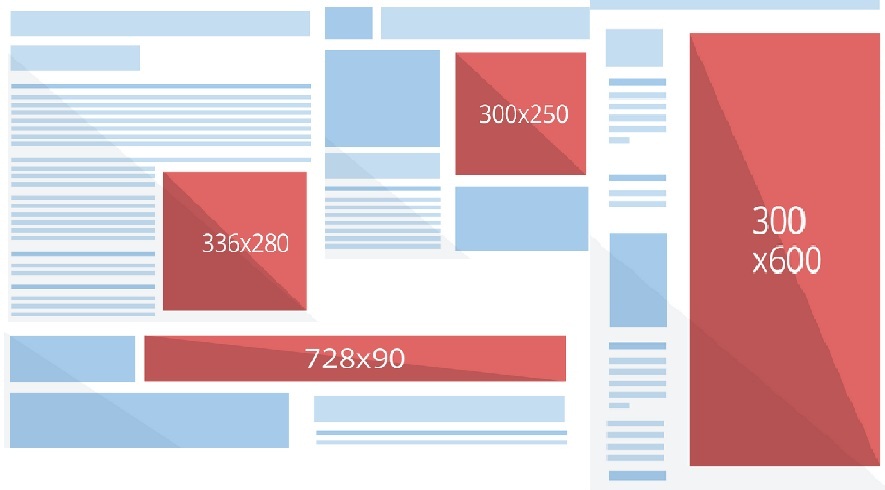
Google says that wider and bigger ads perform better. The sizes found to be most effective by Google are:

160 X 600 wide Skyscraper
336 X 280 Large rectangle
300 X 250 Small square
728 X 90 Leaderboard
best-performing-ad-sizes-google

8. Ads Theme:


Google has many ads themes, choose a theme that match your site style.

adsense-ads-style-google-revenue

9. Adsense for Mobile:


If your mobile site is getting at least 200 views weekly then you must enable Google Adsense ads for mobile site. It will boost your revenue because Google ads in mobile show relevant mobile apps and people download these apps so you get paid for that.

AdSense-Page-level-ads

I hope above tips will be helpful, if you have any suggestion do share it with me in comments. Thanks for visiting 101Helper.

Search tags: increase adsense earnings, Ways to Increase Your AdSense Earnings, boost adsence revenue, get clicks on adsense ads tips, How to Increase AdSense Earnings, make money online with google, make money with adsense


Customizable Related Posts Widget for Blogger

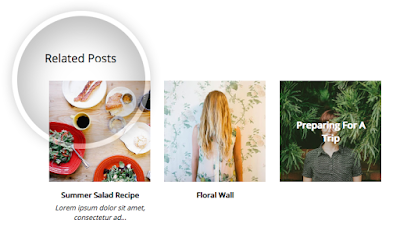
We already posted a few tutorials on how to add related posts widget with thumbnails in Blogger with summaries or only titles, which can be compiled into a single All-In-One Widget with powerful options. This new customizable related posts widget for Blogger integrates all the features we've seen before and more, such as thumbnails (square or round), post dates, excerpts, display only titles / thumbnails.

Now let's see what this related posts blogger widget has to offer.

related posts widget, blogger widget

Related Posts Widget Features:

  • 9 attractive styles to match your needs
  • Show Title, excerpt & thumbnails
  • Display simple related posts with titles / summaries / post date
  • Choose whether to display the post thumbnails or not
  • Ability to control the thumbnail image size
  • Option to choose square or round thumbnails
  • Show post text excerpts
  • Control the length of the post excerpt / title
  • Determine the number of related posts to display

Requirements:

  1. The related posts widget recognizes post thumbnails uploaded through Blogger itself (or Picasa Web Albums), other images from Photobucket, Flickr, or other non-Blogger hosts will not be supported.
  2. This widget is compatible with the standard desktop Blogger templates except Dynamic Views, which does not accept customization.
  3. The script does not work on private blogs, so your blog / site must be open to the public in order to show.

Adding Customizable Related Posts Widget in Blogger

Log into your Blogger dashboard, go to 'Template' and open template editor by clicking the 'Edit HTML' button below 'Live On Blog' preview.

Next, we're going to use the template search feature, be sure to follow these directions exactly:

1. Place your cursor on the template code.
2. Click once.
3. Press CTRL and F at the same time (PC) or Command and F (Mac).

The search box will open in the upper right corner of the template editor.


Type </head> in the search box, then press ENTER. This will take you to the </head> tag in your template and highlight it in yellow.

Select and copy the entire CSS style below and paste it directly ABOVE the </head> tag:
<style type='text/css'>
.related-posts-container{margin:55px 0px;}.related-posts-container h4{font:20px &#39;Open Sans&#39;, sans-serif;margin-bottom:20px;}.related-posts-container ul,.related-posts-container ul li{list-style: none;margin: 0;padding: 0;}.related-posts-container ul li a{text-transform:capitalize !important;font:bold 13px &#39;Open Sans&#39;, sans-serif;outline: 0;}.related-snippets{margin-top:5px;font:italic 12px &#39;Open Sans&#39;, sans-serif;}.related-posts-1 li{list-style:inside none disc !important;}.related-posts-1 li,.related-posts-2 li{border-top:1px solid rgba(0,0,0,0.04);padding:0.8em 0 !important;}.related-posts-1 li:first-child,.related-posts-2 li:first-child{border-top:medium none;}li.related-post-item{margin:0 3% 3% 0 !important;width:22.7%;float:left;list-style:none;position:relative;}li.related-post-item:last-child{margin:0 0 2% !important;}.related-thumb-large{width:100%;height:auto;border:none;margin:0px auto 10px;padding:0 !important;}.related-posts-8 li .related-title,.related-posts-9 li .related-title,.related-posts-9 li .related-snippets{padding-left:74px;}.related-posts-8 li:nth-child(even),.related-posts-9 li:nth-child(even){margin:0 0 4% !important;}.related-posts-8 li,.related-posts-9 li{background-color:#ffffff;box-shadow:0 0 4px rgba(180, 180, 180, 0.55);width:42% !important;float:left;margin:0 4% 4% 0 !important;padding:3% !important;}.related-thumb{float:left;height:64px;margin-right:10px;object-fit:cover;width:64px;}.related-posts-6 li,.related-posts-6 a{line-height:0 !important;}.related-posts-6 .related-thumb-large{margin-bottom:0;}.related-posts-7 li.related-post-item{margin:0 !important;width:25% !important;}.related-wrapper{position:absolute;left:0px;right:0;top:0px;bottom:0;margin:0 auto;z-index:4;background:rgba(77,77,77,0.2);}.related-wrapper-inner{position:relative;height:100%;z-index:99;width:100%;display:table;vertical-align:middle;text-align:center;-moz-box-sizing:border-box;-webkit-box-sizing:border-box;box-sizing:border-box;}.related-wrapper .related-title{vertical-align:middle;display:table-cell;color:#ffffff;font:bold 16px &#39;Open Sans&#39;, sans-serif;padding:0 20px;}.related-date{margin-top:5px;font:italic 11px &#39;Open Sans&#39;, sans-serif;color:#999999;}
</style>

Next, we need to add the script  - search for the following line:
<b:includable id='postQuickEdit' var='post'>

Once you found it, click the small arrow not beside it but with one level above to expand code and scroll down until you see </b:includable> - right below this tag, you should see the line including the "postQuickEdit" id.

See the screenshot for more help:


Just ABOVE the </b:includable> tag, add the following script:
<b:if cond='data:blog.pageType == &quot;item&quot;'>
<div class='related-posts-container' id='related-posts-widget'/>
<div style='clear: both;'/>
<script type='text/javascript'>
var labelArray = [<b:if cond='data:post.labels'><b:loop values='data:post.labels' var='label'>&quot;<data:label.name/>&quot;<b:if cond='data:label.isLast != &quot;true&quot;'>,</b:if></b:loop></b:if>];
var relatedSettings = {
blogURL:&quot;<data:blog.homepageUrl/>&quot;,
relatedHeading:&quot;&lt;h4&gt;&lt;span&gt;Related Posts&lt;/span&gt;&lt;/h4&gt;&quot;,
relatedPosts:4,
relatedStyle:4,
thumbnailSize:&quot;w300-h200-p-nu&quot;,
defaultThumb:&quot;https://blogger.googleusercontent.com/img/b/R29vZ2xl/AVvXsEgN1F7_8dIkcsAcjwFnma6m_8E9rubtadTBMnIWXZEK-xblEAzmyMGAWjJs21WyJuqmUNFsNdjNBChTIFTMKWokBJSsHSQRLIYJHWteijVVTOGTHZgZHLKf-0TNGT44BB6F8YkvVvdRglZI/300-h200-c/no-thumb.png&quot;,
roundThumbs:false,
titleLength:&quot;auto&quot;,
snippetLength:45,
centerText:false,
openNewTab:false
};</script>
<script type='text/javascript'>
//<![CDATA[
var randomRelatedIndex,startRelated;!function(a,b,c){var d={callBack:function(){}};for(var e in relatedSettings)d[e]="undefined"==relatedSettings[e]?d[e]:relatedSettings[e];var f=function(a){var d=b.createElement("script");d.type="text/javascript",d.src=a,c.appendChild(d)},g=function(a,b){return Math.floor(Math.random()*(b-a+1))+a},h=function(a){var c,d,b=a.length;if(0===b)return!1;for(;--b;)c=Math.floor(Math.random()*(b+1)),d=a[b],a[b]=a[c],a[c]=d;return a},i="object"==typeof labelArray&&labelArray.length>0?"/-/"+h(labelArray)[0]:"",j=function(a){var b=a.feed.openSearch$totalResults.$t-d.relatedPosts,c=g(1,b>0?b:1);f(d.blogURL.replace(/\/$/,"")+"/feeds/posts/summary"+i+"?alt=json-in-script&orderby=updated&start-index="+c+"&max-results="+d.relatedPosts+"&callback=startRelated")},k=function(a){var l,m,n,o,p,q,b=document.getElementById("related-posts-widget"),c=h(a.feed.entry),e=d.relatedStyle,f=d.relatedHeading+'<ul class="related-posts-'+e+'">',g=d.openNewTab?' target="_blank"':"",i=d.centerText?"text-align:center;":"",j=d.roundThumbs?"-webkit-border-radius:50%;-moz-border-radius:50%;border-radius:50%;":"",k='<span style="display:block;clear:both;"></span>';if(b){for(var r=0;r<d.relatedPosts&&r!=c.length;r++){n=c[r].title.$t,o="auto"!==d.titleLength&&d.titleLength<n.length?n.substring(0,d.titleLength)+"&hellip;":n,p="media$thumbnail"in c[r]&&d.thumbnailSize!==!1?c[r].media$thumbnail.url.replace(/\/s[0-9]+(\-c)?/,"/"+d.thumbnailSize):d.defaultThumb,l=h(c[r].published.$t);for(var s=[1,2,3,4,5,6,7,8,9,10,11,12],t=["January","February","March","April","May","June","July","August","September","October","November","December"],u=l.split("-")[2].substring(0,2),v=l.split("-")[1],w=l.split("-")[0],x=0;x<s.length;x++)if(parseInt(v)==s[x]){v=t[x];break}postdate=v+" "+u+" "+w,q="summary"in c[r]&&d.snippetLength>0?c[r].summary.$t.replace(/<br ?\/?>/g," ").replace(/<.*?>/g,"").replace(/[<>]/g,"").substring(0,d.snippetLength)+"&hellip;":"";for(var y=0,z=c[r].link.length;y<z;y++)m="alternate"==c[r].link[y].rel?c[r].link[y].href:"#";1==e?f+='<li><a href="'+m+'" '+g+">"+o+"</a></li>":2==e?f+='<li><a href="'+m+'" '+g+'><div class="related-title">'+o+'</div></a><div class="related-snippets">'+q+"</div></li>":3==e?f+='<li class="related-post-item" style="'+i+'"><a href="'+m+'" '+g+'><img alt="" class="related-thumb-large" src="'+p+'" style="'+j+'"><div class="related-title">'+o+'</div></a><div class="related-snippets">'+q+"</div></li>":4==e?f+='<li class="related-post-item" style="'+i+'"><a href="'+m+'" '+g+'><img alt="" class="related-thumb-large" src="'+p+'" style="'+j+'"><div class="related-title">'+o+'</div></a><div class="related-date">'+postdate+"</div></li>":5==e?f+='<li class="related-post-item" style="'+i+'"><a href="'+m+'" '+g+'><img alt="" class="related-thumb-large" src="'+p+'" style="'+j+'"><div class="related-title">'+o+"</div></a></li>":6==e?f+='<li class="related-post-item"><a href="'+m+'" '+g+'><img alt="" class="related-thumb-large" src="'+p+'" style="'+j+'"><div class="related-wrapper" style="'+j+'"><div class="related-wrapper-inner"><div class="related-title">'+o+"</div></div></div></a></li>":7==e?f+='<li class="related-post-item"><a href="'+m+'" '+g+'><img alt="" class="related-thumb-large" src="'+p+'" style="'+j+'"></a></li>':8==e?f+='<li class="related-post-item"><a class="related-post-item-wrapper" href="'+m+'" '+g+'><img alt="" class="related-thumb" src="'+p+'" style="'+j+'"><div class="related-title">'+o+'</div></a><div class="related-date">'+postdate+"</div></li>":9==e&&(f+='<li><a href="'+m+'" '+g+'><img alt="" class="related-thumb" src="'+p+'" style="'+j+'"><div class="related-title">'+o+'</div></a><div class="related-snippets">'+q+"</div></li>")}b.innerHTML=f+="</ul>"+k,d.callBack()}};randomRelatedIndex=j,startRelated=k,f(d.blogURL.replace(/\/$/,"")+"/feeds/posts/summary"+i+"?alt=json-in-script&orderby=updated&max-results=0&callback=randomRelatedIndex")}(window,document,document.getElementsByTagName("head")[0]);
//]]>
</script>
</b:if>

How to Customize the Related Posts Widget for Blogger?

To change the 'Related Posts' text that appears above the widget, modify the text in red:
relatedHeading: &quot;&lt;h4&gt;&lt;span&gt;Related Posts&lt;/span&gt;&lt;/h4&gt;&quot;,

To change the number of posts to display, change the '4' value from this line:
relatedPosts: 4,

Note: you may need to change the percentages in the CSS styles above in order to make posts fit the related container. Just follow the values in red and play with them until you get the best results.

To change the style of the related posts widget, modify the '4' value from:
relatedStyle: 4,

Available Related Posts Styles

  1. simple related posts widget that will show post titles only
  2. display post titles and snippets
  3. display post thumbnails, titles and snippets
  4. display related posts thumbnails, titles and post date (shows by default)
  5. display related posts thumbnails and titles
  6. post titles in front of thumbnails, instead of having them below the thumbnail
  7. display thumbnails only
  8. small thumbnail with titles on the right and date below
  9. small thumbnails with post titles and excerpts on the right

Customizing the Related Post Thumbnail Size & Style

By default, thumbnails are resized and cropped automatically to be 300px wide by 200px tall. If you want to change the width and height of the thumbnails, modify the '300' and '200' values from:
thumbnailSize: &quot;w300-h200-p-nu&quot;,
defaultThumb: &quot;https://blogger.googleusercontent.com/img/b/R29vZ2xl/AVvXsEgN1F7_8dIkcsAcjwFnma6m_8E9rubtadTBMnIWXZEK-xblEAzmyMGAWjJs21WyJuqmUNFsNdjNBChTIFTMKWokBJSsHSQRLIYJHWteijVVTOGTHZgZHLKf-0TNGT44BB6F8YkvVvdRglZI/300-h200-c/no-thumb.png&quot;,
Note: 'w' comes from width, 'h' comes from height. To make the thumbnails square, change the 'h' (height) value and make it equal with 'w' (width) value. A higher value will result in more high-res images.

If you want thumbnails have rounded corners, change 'false' with 'true':
roundThumbs:false,

Customizing Related Titles & Excerpts

To shorten the post title, change auto with the number of characters to show:
titleLength: &quot;auto&quot;,

To reduce or add more characters to the snippets, change the "45" value:
snippetLength: 45,

If you want to center text (title and summary), change 'false' to 'true':
centerText:false,

To open links in a new tab when visitors click on a related post, change "false" to "true":
openNewTab: false

Once you're done with the settings, click the 'Save Template' button and now you can see the related posts widget live on your Blogger blog.

Final words

That's it! With the new customizable Related Posts widget for Blogger you will be able to add unique features to the related content section of your blog. However, all of these styles look and work slightly different, so take your time, and pick your favorite.

How To Get Approved Adsense Account With Blogger

how to get approved google adsense with blogger

I have shared many ad networks for publishers along with whole method of how to sign up, implementation of ads and boosting earnings but today I am going to share something most amazing and searched by bloggers and other publishers, its Google Adsense. It doesn't need any intro everyone is aware of Google Adsense. The thing which is most liked by publishers is high rates and best services which makes Adsense on top of all ad networks and thats why all bloggers and other publishers wish to have approved adsense account to earn good money. But as its the best ad network it is strict too because it provides better services to its advertisers. It doesn't tolerate any violence against its policies in order to provide best services to both advertisers and publishers.

That's the reason why it strictly analysis sites to be approved. Especially in countries like India and China Adsense is very strict because many spammers get approved accounts by certain tricks and sell them for fast earnings. So its harder to get approved adsense account.

However with blogger it is a little bit easier to get an approved adsense account. Though it is called hosted adsense account but still its good if used with care(no policy violations). So in this post I am going to give u some tips to get an approved adsense account.

1. Blog/Website Traffic:


The first thing you need to focus is traffic. How much your daily traffic is? where it comes from? these are the things which matter in case of traffic. Every ad network pay good when you have good traffic but adsense pay much higher rates even your traffic is not too huge but organic. So you need to focus on traffic of your blog.

Steps to improve blog traffic:

Search Engine Optimization:

Improve your traffic by optimizing your blog for search engines to get real unique views.
  1. Add meta tags to your blog
  2. Enable search description for every post
  3. Use best keywords that match your content
  4. Optimize blog title
  5. Use webmaster tools - BING, GOOGLE, YANDEX.
Social Sources For Traffic:

Get your site shared on social networks for example in facebook groups, Google communities, Twitter, reddit, stumbleupon.

Guest blogging:

Write posts in other blogs and get backlink from them. It will drive some traffic to your site and give u backlinks too.

2. Search Ranking And Social Profiles.


Improve your search rankings and create social profiles and share every post of you on your social profiles. To improve search engines rank built quality backlinks and focus on seo.

3. Content:


Google like text posts more then just images. It doesn't mean that you start writing long and long posts that once read by a person would never come back to your site, he will search for short, meaningful posts. Too long post are not liked by people so write a great content and meaningful content no matter its not long. Google emphasizes more on meaningful content rather than on long content, here is the statement that google always use:

"Write a content that is meaningful so that people have a reason to visit your site"

So above statement clears that your content shouldn't be long but meaningful so that it could be good enough to bring visitors to your blog.

One more question that many Adsense appliers ask is how many posts should I write to get my Adsense account approved and the answer is simple, you don't need to write 200 or 500 post and all should be long stories, absolutely not. You can get your Adsense account approved even with 50-80 posts but your posts should be meaningful enough to receive traffic. So its all about traffic!

Content that is prohibited by Google:

1. Pornography/Adult content.
2. Illegal content e.g drugs.
3. Hacking content.
4. Violent content.
5. Copied content from other sites.


4. Site/Blog design:


1. Loading speed:

Make your site load fast because it is a part of user experience. If user experience is not good you can't get Adsense approved!


2. Navigation:

It is also recommended to have a good navigation so that visitor could easily find what he's looking for. A floating menu and search box would be a good choice!

3. User experience:

Keep focus on user experience, your site design shouldn't disturb the visitor. For example any pop-up that pops up again and again or alot of slideouts asking for email subscriptions.

Mobile site should also be free of such things which affects user experience specially pop-ups. If your mobile site have pop-ups remove them as soon as possible otherwise Google is going to penalize your site.

Beware of Google's mobile site pop-up penalty

5. Third party ads:


You don't need to remove all your third party ads and lose whatever you have earned. Though you need to remove all the ads when you are applying for adsense and once approved you can install the ads back but these ads should be compatible with Adsense!

Pop-up ads should be removed before applying to Adsense and you can't install them after approval otherwise your Adsense account will get banned because Google hates pop up ads.

6. Comply With Google AdSense Policies:


Your site should comply with Google Adsense policies. According to Google Adsense policies:

1. Your content should be legal(no pornography, no violent content, no gambling content etc).

2. Your site should not violate any copyright policies(copy paste content).

3. Traffic sources of your site should not include PTC sites, Fake traffic from any software or traffic exchange sites, Traffic from unsolicited mass emails.

Read more at https://support.google.com/adsense/answer/48182?hl=en

7. Important Pages:

Your blog should have pages like contact pages, privacy policy, disclaimer, about, sitemap.

Conclusion

With all the above things you will get your adsense account approved. In case of failure don't lose hope try again after some time but keep in mind that without good traffic e.g minimum 400 views per day you can't get adsense approved and if you get adsense approved with low traffic by some trick then it will not be good because you won't get aby benefit of it because you would not have any real traffic and thats why you will not earn good.

Also an adsense account got approved with tricks will be more prone get banned. So avoid these things!

Search Tags: get adsense account approved blogger,blogspot,make earn money with adsense, adsense,make money with adsense,increase adsense earnings,more clicks on ads

Add Load More Posts or Infinite Scrolling to Blogger

You might have seen the implementation of infinite scrolling at Facebook, Twitter or Google+. Instead of showing Older / Newer posts links, we can load posts dynamically whenever a "Load more posts" button is clicked, or by scrolling down the page. This tutorial will show you how to implement Ajax based loading script that will add Load More Posts or Infinite Scrolling to Blogger, so that visitors can easily navigate without reloading the page.

How it works?

- You have the option to add a 'Load More Posts' button or load automatically the older posts as visitors scroll down the page.
- Once implemented, Load More Posts / Infinite Scrolling applies to all Blogger posts on index pages (homepage, archive, label pages). It can't be added on individual posts.

Demo

To see it live, check out the demo below. When you scroll down to the bottom of the page, you will see the "Load More Posts" button. Once you click it, the next 3 posts set to display will load below.

infinite scrolling, load more posts


Adding Load More Posts or Infinite Scrolling to Blogger

1. Log into your Blogger account and click on your blog where you want to add it.
2. Go to 'Theme' and click the 'Edit HTML' button to open the Template editor > click anywhere in the code area and press CTRL + F keys (or Command + F) to open the search box.


3. Type the tag below in the search box and press ENTER to find it:
</body>
4. Just above the </body> tag, add the script below:

a. If you want to load posts with 'Load More Posts' button like in the demo blog, add this script:
<script src='https://ajax.googleapis.com/ajax/libs/jquery/2.2.0/jquery.min.js'/>
<b:if cond='data:blog.pageType != &quot;static_page&quot;'><b:if cond='data:blog.pageType != &quot;item&quot;'>
<script type='text/javascript'>
//<![CDATA[
function resizeThumb(e,n){for(var t=document.getElementById(e).getElementsByTagName("img"),a=0;a<t.length;a++)t[a].src=t[a].src.replace(/\/s72\-c/,"/s"+n+"-c")}window.labelfx=function(){var e=function(e){var n=e||{},t=n.url_blog||window.location.host,a=n.id_labelcontent||"#labelfxn";$.ajax({url:"http://"+t+"/feeds/posts/summary?max-results=0&alt=json-in-script",type:"get",dataType:"jsonp",success:function(e){var n=e.feed.category,t="";if(void 0!==n){t="<ul class='labelx'>";for(var i=0;i<n.length;i++)t+='<li><a href="/search/label/'+encodeURIComponent(n[i].term)+'" target="_blank">'+n[i].term+"</a></li>";t+="</ul>",$(a).html(t)}else $(a).html("<span>No Label!</span>")},error:function(){$(a).html("<strong>Error Loading Feed!</strong>")}})};return function(n){e(n)}}(),resizeThumb("main",250),labelfx(),function(e){function n(n){e.getScript("http://"+n+".disqus.com/blogger_index.js")}function t(){s||(s=!0,o?(r.find("a").hide(),r.find("img").show(),e.ajax(o,{dataType:"html"}).done(function(t){var a=e("<div></div>").append(t.replace(l,"")),i=a.find("a.blog-pager-older-link");i?o=i.attr("href"):(o="",r.hide());var p=a.find(d).children(".date-outer");e(d).append(p),resizeThumb("main",250),window._gaq&&window._gaq.push(["_trackPageview",o]),window.gapi&&window.gapi.plusone&&window.gapi.plusone.go&&window.gapi.plusone.go(),window.disqus_shortname&&n(window.disqus_shortname),window.FB&&window.FB.XFBML&&window.FB.XFBML.parse&&window.FB.XFBML.parse(),window.twttr&&window.twttr.widgets&&window.twttr.widgets.load&&window.twttr.widgets.load(),r.find("img").hide(),r.find("a").show(),s=!1})):r.hide())}function a(){if("item"!=_WidgetManager._GetAllData().blog.pageType&&(o=e("a.blog-pager-older-link").attr("href"))){var n=e('<a class="loadpost" href="javascript:;" style="text-decoration:none;font:11px Open Sans, sans-serif;letter-spacing:1px;padding:10px 20px;background:#000000;color:#ffffff;">LOAD MORE POSTS</a>');n.click(t);var a=e('<img src="'+i+'" style="display: none;">');(r=e('<div style="display:block;text-align:center;margin:20px auto;"></div>')).append(n),r.append(a),r.insertBefore(e("#blog-pager")),e("#blog-pager").hide()}}var i="https://blogger.googleusercontent.com/img/b/R29vZ2xl/AVvXsEimCKC-L6wUL35995rCsOBtr2CgMIRKA-Mg7hi0MTVuUzqSMrdXZDtN0kNilq-tpxlmw_MrHRTG7XTVMNK9efjzZ1NGd5jXa5OpkiwjVBkoIj261-fyRJ23xptbkImBEzVKVGZebGtlRODf/s1600/loader.gif",o="",r=null,d="div.blog-posts",s=!1,l=(e(window),e(document),/<script\b[^<]*(?:(?!<\/script>)<[^<]*)*<\/script>/gi);e(document).ready(a)}(jQuery);
//]]>
</script>
</b:if></b:if>

b. If you want to add the infinite scrolling without button, paste this instead:
<script src='https://ajax.googleapis.com/ajax/libs/jquery/2.2.0/jquery.min.js'/>
<b:if cond='data:blog.pageType != &quot;static_page&quot;'><b:if cond='data:blog.pageType != &quot;item&quot;'>
<style type="text/css">.status-msg-wrap{display:none;}</style>
<script type='text/javascript'>
//<![CDATA[
!function(i){function e(e){i.getScript("http://"+e+".disqus.com/blogger_index.js")}function t(){g||(g=!0,r?(w.find("a").hide(),w.find("img").show(),i.ajax(r,{dataType:"html"}).done(function(t){var n=i("<div></div>").append(t.replace(c,"")),o=n.find("a.blog-pager-older-link"),d=n.find(s).children();i(s).append(d),window._gaq&&window._gaq.push(["_trackPageview",r]),window.gapi&&window.gapi.plusone&&window.gapi.plusone.go&&window.gapi.plusone.go(),window.disqus_shortname&&e(window.disqus_shortname),window.FB&&window.FB.XFBML&&window.FB.XFBML.parse&&window.FB.XFBML.parse(),window.twttr&&window.twttr.widgets&&window.twttr.widgets.load&&window.twttr.widgets.load(),o?r=o.attr("href"):(r="",w.hide()),w.find("img").hide(),w.find("a").show(),g=!1})):w.hide())}function n(){return Math.max(p.height(),l.height(),document.documentElement.clientHeight)}function o(){n()-(p.scrollTop()+p.height())<150&&t()}function d(){if("item"!=_WidgetManager._GetAllData().blog.pageType&&(r=i("a.blog-pager-older-link").attr("href"))){var e=i('<a href="javascript:;">Load more posts</a>');e.click(t);var n=i('<img src="'+a+'" style="display: none;">');p.scroll(o),(w=i('<div style="text-align: center; font-size: 150%;"></div>')).append(e),w.append(n),w.insertBefore(i("#blog-pager")),i("#blog-pager").hide()}}var a="https://blogger.googleusercontent.com/img/b/R29vZ2xl/AVvXsEimCKC-L6wUL35995rCsOBtr2CgMIRKA-Mg7hi0MTVuUzqSMrdXZDtN0kNilq-tpxlmw_MrHRTG7XTVMNK9efjzZ1NGd5jXa5OpkiwjVBkoIj261-fyRJ23xptbkImBEzVKVGZebGtlRODf/s1600/loader.gif",r="",w=null,s="div.blog-posts",g=!1,p=i(window),l=i(document),c=/<script\b[^<]*(?:(?!<\/script>)<[^<]*)*<\/script>/gi;i(document).ready(d)}(jQuery);
//]]>
</script>
</b:if></b:if>

Note: This code uses jQuery library, so if you already have jQuery on your page, please remove the line in red highlighted above.

5. Click 'Save template' button and check the 'Load More Posts' button / Infinite Scrolling in your Blogger blog.

Conclusion

That's it! So this is how we can easily add Load More Posts / Infinite Scrolling to Blogger. From now on, our visitors can stay in same page and navigate through infinite number of posts on the fly!

Beware Of Google's Mobile Site Pop-up Penalty

Google-Penalty-blogspot-mobile-site-pop-up-interstitial

Google has recently announced that it will penalize all the sites having pop ups or interstitial pop ups on mobile site.

This is because Google wants to improve users experience on mobile site. So its time to remove all the pop ups whether it is an ad or it is like button or a news letter pop up window.

If not removed Google will penalize your site by lowering its rank. Here is what Google said:

"pages where content is not easily accessible to a user on the transition from the mobile search results may not rank as highly."

Though you can add some slide out with a close button or you can just simply add your ads or widgets in your mobile site but pop up is not allowed.

Google will start penalizing sites having interstitial pop ups by January 10, 2017.

Google explains which type or interstitial pop ups are not allowed and will lead to penalty.

1. A pop up that covers the main content of page, whether it is shown when the uuser enters the site or after some time is spent in the site.

2. An interstitial pop up that visitor has to close before reaching the main content.

3. A layout in which above-the-fold portion of the page appears similar to a standalone interstitial, but main content is below the fold.

google-mobile-interstitials-penalty-bad

Similar to those pop ups which are not allowed and will lead to penalty Google lists three types of interstitial pop ups which are allowed and are not going to penalize your site. Here is statement from Google:

"Interstitial pop ups which would not be affected by the new signal” if “used responsibly.”

1. Interstitial pop up telling that the site is using cookies.
2. Login in or signup dialogs to reach the content on a site.

3. Banners or ads which covers only a small area of page for example a slide down ad from above down or from below up.

google-mobile-interstitials-penalty-good

So its highly recommended to remove all the interstitial pop ups which will lead to penalty and lower your site rank.

Hope you like this post. Share it with others and help them to beware of this penalty. Thanks for visiting 101Helper!

Search tags: Google seo tips, google penalty, Beware of Google's mobile site pop up penalty, pop up penalty google, how to avoid google penalty, search engine optimization-seo blogspot,blogger seo,101helper

How To Add Youtube Channel Feed In Blogger

How To Add Youtube Channel Feed In Blogger - the101helper.com

Do you own a youtube channel? if yes and you want to show your youtube videos list or grid in your blog then you have found a helpful post. This post will show you how to add youtube channel feed in your blog or site it will show all the videos from your channel and you can customize everything like title, video size, number of videos to be shown etc and your site's speed will also not decrease, no matter how many videos you are going to show from your youtube channel.

To show your youtube videos feed on your blog or site you will need to use a plugin that allows you to show youtube videos on your site. Its absolutely free and easy to use. So in this post I am going to show you how to add youtube videos in blogger site.

Want to see a live demo? Check Out My Youtube Channel Feed Here

Similar Posts: How To Install "Get Site Control" Widgets In Blogger

How To Add Youtube Channel Feed In Blogger?

Step 1: Go to https://www.powr.io and create account.

Step 2: Confirm your account from Email and login to it.

Step 3: Click on Create New Plugin.

how to show youtube videos in blogger

Step 4: Choose Social Feed from the pop-up menu shown on the page.

how to add youtube channel in blogger

Step 5: Click on START FROM SCRATCH in the menu on right side.

how to add youtube videos grid in blogger

Step 6: Select Youtube as SOCIAL FEED TYPE and enter your youtube channel's URL or username in the FOLLOWING tab, select how many videos you want to get from your feed and finally click on Next.

- You can see a preview of your channel's feed on the page.

how to show youtube videos in blogger blog

Step 7: In this step choose how many videos you want to display from your youtube feed and number of characters in title and click on Next.

youtube videos in blogger 101helper

Step 8: Its the customization step, here you have follow things to be customized:

1. Sizing.
2. Post content design.
3. Post footer.
4. Borders.
5. Password protection. Upgrade required!
6. Advanced Upgrade required!

I am not going into all this because it is not difficult to customize your videos look because you have a live preview on your right hand on the page. Though if you find any difficulty, leave a comment below I will get back to you as soon as possible.

how to add gadgets in blogger tutorials

Step 9: Finally click on Publish and give your plugin a title and save it!

how to add gadgets in blogger blog 101helper

Step 10: Its time to implement the gadget you just created so copy the code of your plugin from Powr.io page as shown in below image.


Step 11: Go to blogger dashboard and navigate to Layout.

how to add gadgets in blogger blogspot
Copyright. Powr.io

Step 12: Click on Add a Gadget > Html/Javascript and paste your code.

how to add a gadget in blogger animation
Copyright. Powr.io
Step 13: Click on save and you are done open your blog to see your youtube channel feed.

You can customize your gadget any time by logging in to your Powr.io account. You can use Powr.io for many other purposes like showing feed from instragram, facebook, twitter etc and there are number of gadgets you can activate for your blog or site.

Check out what else can you get from Powr.io here

I hope this post is helpful to you. Information in this post is rarely available on internet so kindly share this with others. Thanks for visiting 101Helper.

Search Tags: Show YouTube Activity Feed on Your Blogspot, show youtube videos grid on your site, how to get youtube channel feed and show it on website,youtube videos on blogger list,youtube plugins gadgets for blogger 101helper.

How To Earn Bigger From Google Play Store Apps Using Blogger Blog

earn money from appnext googleplay store 101helper

I have shared many ways of earning online with blogger blog but today I am sharing something unique and different which is good to earn bigger amounts. With this amazing network you can earn money for each cpi(cost per install) and it is only for blogger mobile sites not for desktop site. Also its not only for blogger but all mobile websites can be integrated with these ads.

These ads are powered by APPNEXT. With AppNext ads you can show ads of Google Play apps and you get paid for every download. This ad network is good for those who have a more good mobile site and get more visitors on mobile sites. With Appnext you have full control over your ads. You have following benefits:

1. Ads don't slow down your mobile site.
2. You can show apps ads from specific category e.g games, social networking, sports, videos and audio apps etc.
3. You can install page over ads as well as video and banner ads.
4. Appnext finds high rate ads automatically and display it on your site.
5. All ads work on IOS as well as Android platforms.

More over you can show ads of a specific app which is paying a high rate, you need to get that app from marketplace in Appnext.

So Appnext is really a good network for mobile sites and a good network to earn bigger.

Benefits Of Appnext:

Appnext ads types for websites

1. Page over, banner, video ads.
2. Easy implementation.
3. No minimum traffic required.
4. High rates per CPI(cost per install).
5. Full control over ads.

Payment Methods:

Wire transfer - $200.
Paypal - $20
Credit Card - Coming soon!

Payment Proof:

paypal-prove-appnext-payment-101helper

How To Earn Money From AppNext?


(1): CREATE AN APPNEXT ACCOUNT:

Step 1: Go to AppNext and click on Join Now

how to sign up at appnext

Step 2: Fill up the signup form and confirm it from your email.

how to sign up at appnext 101helper

Step 3: Login to your Appnext account, you will find two IDs from appnext one will be for IOS and other for Android, Copy and save them.

Note:  If you didn't get any ID then leave it.

(2). SUBMIT YOUR WEBSITE/BLOG TO APPNEXT:

Step 1: Login to your Appnext account.

Step 2: Click on Add New App in the menu on top.

how to earn bigger money from website

Step 3: Choose Website as your platform, enter its URL and click on Next.

earn money form blogger

Step 4: Type your Site or Blog name and upload its logo if you like.

appnext apps for cpi

Step 5: Select up-to three categories for IOS.

earn money from google ios, andoid apps

Step 6: Select up-to three categories for ANDROID.

how to earn money from blog, website

Step 7: Give a message to your advertisers in the next step or just process away by clicking on next.

how to earn money from blogger blogs.png

After submitting your site you will get submission completed dialog along with two IDs one with the name Android Placement ID and other with IOS Placement ID. Copy both of these IDs, you will need them at the time of implementation of ads.


(3). IMPLEMENTING APPNEXT ADS IN BLOGGER MOBILE SITE:

Step 1: Go to Integration Tools page.

Step 2: Choose type of ads which you want to implement in the menu on left side under Websites heading. I am choosing Interstitial JS Tag because it will give you more downloads rather than other types of ads.

how to add appnext ads in blogger mobile site

Step 3: Scroll down and copy the javascript code. Your code will be as shown below.

<script type="text/javascript">
 var Appnext = {
       android_id: 'Your Android Code Here',
       ios_id: 'Your IOS Code Here',
       cat: 'Category Name(If necessary) E.g Social Networking, Games, Casino',
       pbk: '',
       b_title: '',
       b_color: '',
       skip_url: '',
       skip_title: '',
       mute: '',
       timeout: '',
       times_to_show: '',
       times_to_show_reset: '',
       creative:'managed',
       subid: ''
     };
 (function(){
 var _s=document.createElement('script');
 _s.type='text/javascript';
 _s.async=true;
        _s.src='https://appnext.hs.llnwd.net/tools/tags/video/manage_script.js';
 (document.body)?document.body.appendChild(_s):document.head.appendChild(_s);
 })();
</script>

Step 4: Replace the Your Android Code Here and Your IOS Code Here with ID's you just provided with at the time of submission of your website. Place your ID's carefully don't place Android ID in IOS and IOS ID in Android place.

Step 5: Copy your final code and go to blogger layout and click on add a gadget > Html/Javascript.

Step 6: Paste the code and click on save.

Step 7: Go to template and search for your gadget by ID or by name you just given to it.

Step 8: Type mobile='only' after locked='false'.


Step 9: Click on save and you are done.

Make sure that you have enabled Custom mobile template for your mobile site otherwise you will not see any ads.

You can implement other ads in your mobile site too but video ads and banner ads may slow down your site which is not good for mobile users. Follow our mobile tutorials to get more help about implementing ads in your mobile site!

1. How To Show Ads Above Comments In Blogger Mobile Site

2. How To Show Ads In Mobile View In Blogger

3. How To Optimize Blogger Blog For Mobile Phones

That's it. I hope you liked this post and found it helpful. If not please let me know.

Thanks for visiting 101Helper. Do follow us on social media and keep visiting us.

Search Tags: Mobile blogging tutorials for blogger, how to earn money from appnext, appnext review for publishers, minimum payout, earn money from google appstore, mobile ad networks, high rates paying networks,cost per install networks, earn money from websites,blogs